Any shape, not only the wide one
Landscape, portrait, square, the 4:5 feed, classic, tall, a ratio of your own, or the exact shape of what you recorded — chosen after the take, not before it.
Canvas & backgrounds
Padding, rounded corners, a shadow and a background that belongs to your brand — set once, rendered at export.
The problem
A raw capture is a rectangle of somebody else’s user interface, edge to edge, with nothing of you in it. Next to a competitor’s polished clip it reads as a screenshot that happens to move.
What happens instead
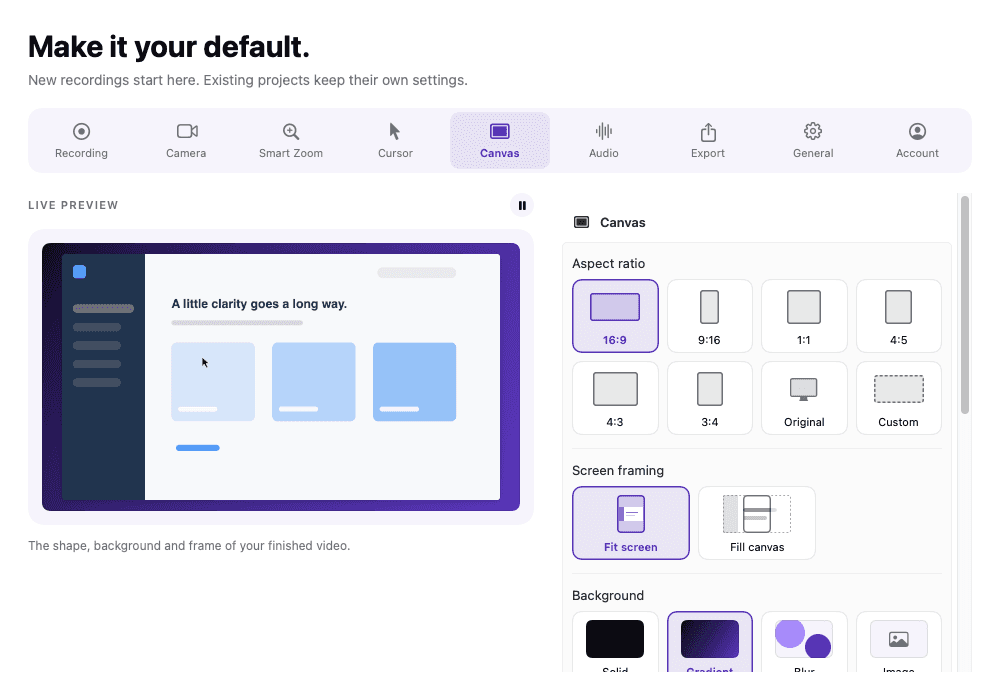
Pick a canvas — landscape, portrait, square, 4:5 feed, classic, tall, custom or the original — fill it with a solid colour, gradient, blur or your own image, then set screen padding, corner radius, border opacity and shadow.
In detail
Landscape, portrait, square, the 4:5 feed, classic, tall, a ratio of your own, or the exact shape of what you recorded — chosen after the take, not before it.
A solid colour, a gradient, a blur of the recording itself, or an image you import — stored inside the project folder so it travels with it.
Fit the whole screen inside the canvas when detail matters, or fill the canvas and let the framing follow what you are doing.
The canvas is an export decision. The ready-to-play MP4 written beside the project keeps the untouched capture.
In the app
Captured from the application itself, at the size it actually draws.
Specifications
Open the project, choose a canvas, and fill it. The fill can be a solid colour, a gradient, a blur of the recording itself or an image you import, and the screen sits on top of it with padding you set. Because the background is drawn when the project plays and exports, the original capture underneath is never changed, and you can swap the background on any project later.
Padding gives the recording room to breathe. Rounded corners and a border make the capture read as a window rather than a crop, and a shadow lifts it off the background. These are the three settings that turn an edge-to-edge screen capture into something that looks designed: screen recording backgrounds and padding gives starting values for each.
A canvas can be landscape, portrait, square, a 4:5 feed shape, classic, tall, custom or the original shape of what you recorded. Choose fit to keep the whole screen inside the canvas when detail matters, or fill to let the frame follow what you do. If the destination is a vertical feed, the vertical video feature goes into the shape and framing choices in depth.
A gradient is a safe default for tutorials, because it gives the screen contrast without a competing image. A blur of the recording itself ties the frame to the content and works well for short clips. An imported image is stored inside the project folder, so it travels with the project when you move it.
FAQ
No. The canvas, the padding and the background are drawn when the project plays and exports, so the captured screen underneath is untouched and every choice stays reversible for as long as you keep the project.
Inside the project folder, alongside the media and metadata, so moving or duplicating the project keeps the background with it.
Open the project, choose a canvas shape, then fill it with a solid colour, a gradient, a blur of the recording or an image you import. Set padding, corner radius, border and shadow, and the preview shows exactly what the export will draw.
Yes. Corner radius, border opacity and shadow are settings on the screen, and they are rendered at export, so the original capture is untouched. Rounded corners and a shadow are what make a capture read as a window rather than a cropped screenshot.
Keep reading
A 9:16, 4:5 or 1:1 canvas that shows the whole screen over a blurred backdrop, or fills with your recording and follows what you are doing, so the action stays inside a frame the shape of a phone.
Read moreUp to 4K at 30 or 60 FPS, MP4 or MOV, H.264 or HEVC — plus a playable MP4 written the moment you stop.
Read moreRemove, blur or recolour what is behind you on camera — chosen after you record, with no green screen and nothing uploaded.
Read moreFrom the blog
Product Features
A settings preview that is drawn by a different renderer than the export is a guess. ReScreen draws both with one compositor, so the tile you picked is the frame you get.
5 min read
Video Marketing
You do not need an agency or motion graphics to launch. A clear 60-second structure and a well-framed screen recording will carry a SaaS launch video.
6 min read
Video Marketing
A hero video has seconds to show what your product does. How to plan, record and export a 60-second landing page product video that works on mute.
7 min read
Product Features
A raw capture reads as a screenshot that moves. Padding, rounded corners, a shadow and a background of your own make the same take look designed.
6 min read
Video Marketing
Your product is your best content and it is already on your screen. A practical system for turning short screen recordings into a steady social media presence.
6 min read
Product Features
Your screen is wide and the feed is tall. ReScreen's vertical presets reframe one landscape recording into 9:16 and follow your pointer so the action stays in shot.
6 min read
Feature Guides
Circle or pill? 15% or 30%? A setting-by-setting guide to ReScreen's camera overlay, with values for tutorials, demos, social clips and courses.
6 min readInstall it, hit ⌥⌘R, and watch a take that would normally cost you an evening in a timeline come out finished.
macOS 13 Ventura or later · Apple Silicon and Intel