Grouped, never twitchy
Clicks close together become one held zoom instead of a dozen lurches, and a drag or a scroll keeps the zoom alive for as long as the interaction lasts.
Smart Zoom
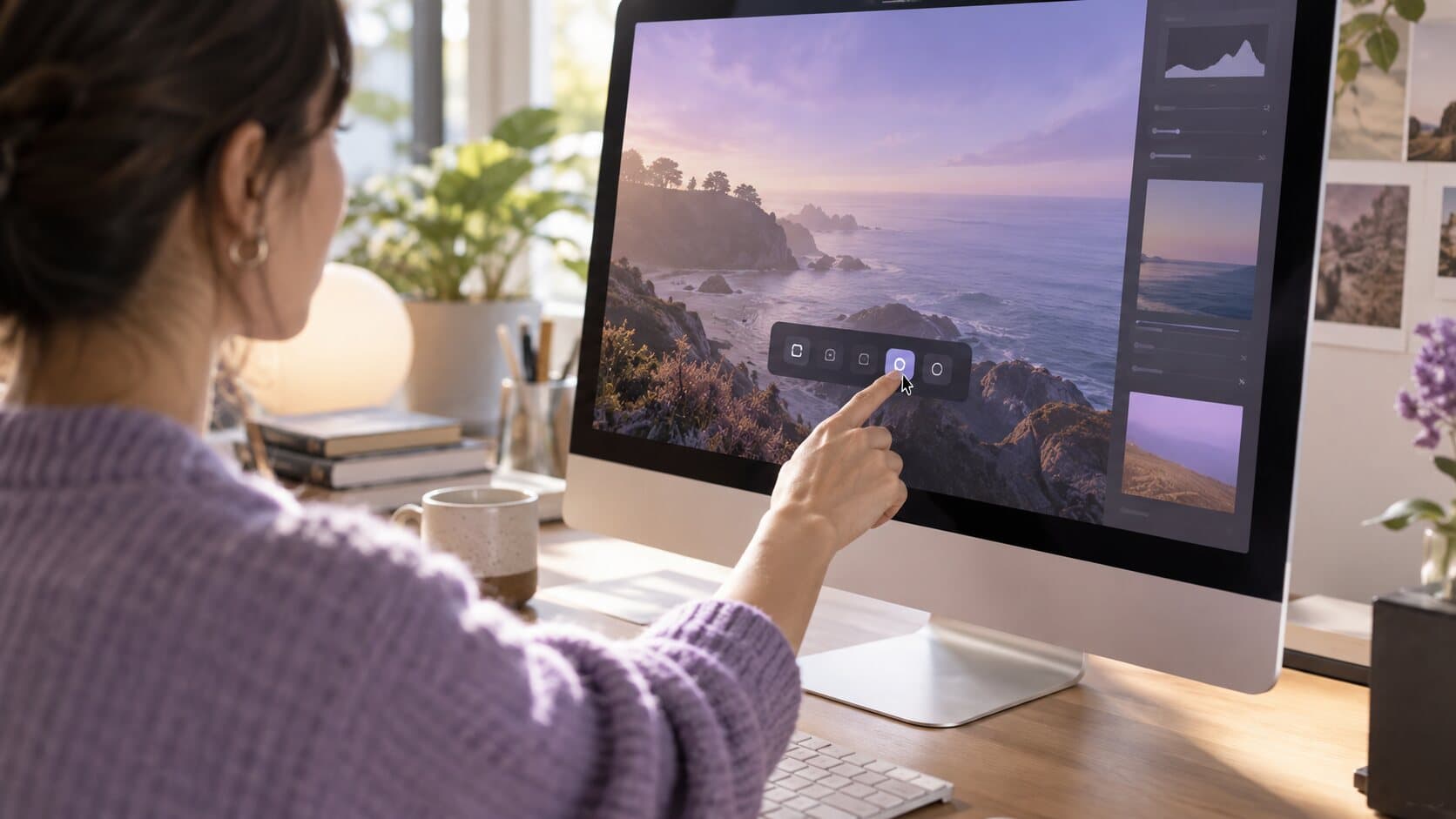
ReScreen watches where you click, drag and scroll, then pans and zooms the way an editor would — while you are still recording.
The problem
Your viewer is squinting. The button you just clicked is forty pixels wide on a 4K display, and the only fix anyone knows is an hour of keyframing a scale value that never quite lands on the right frame.
What happens instead
Clicks are recorded as events, not as pixels. The editor groups them into zoom blocks, frames them away from your camera bubble and the edges of the screen, and hands every block back to you to move, retime or delete.
In detail
Clicks close together become one held zoom instead of a dozen lurches, and a drag or a scroll keeps the zoom alive for as long as the interaction lasts.
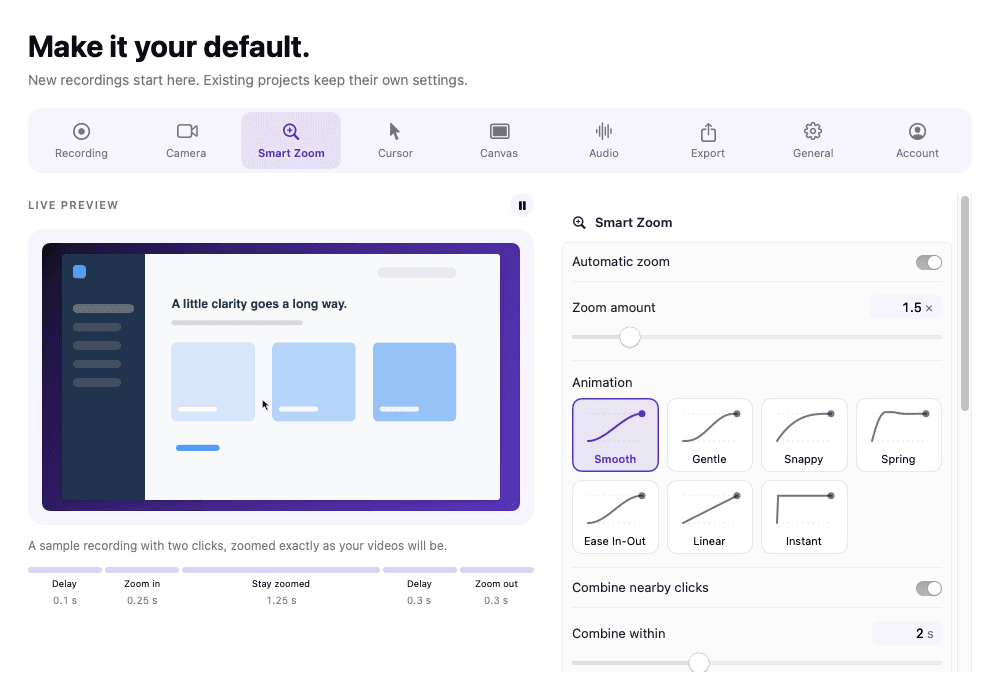
Choose how a zoom enters and leaves, and set the in, hold and out timings per block until the motion matches the way you talk.
Framing is clamped to the source bounds and steers around the camera bubble, so a zoom never crops the thing it was pointing at.
Add a manual zoom anywhere on the timeline, or set a selected zoom’s focus by clicking the preview. Undo and redo cover every change.
In the app
Captured from the application itself, at the size it actually draws.
Specifications
You do not add it afterwards, and you do not keyframe anything. Record as you normally would with Input Monitoring allowed, and ReScreen builds the zooms from the clicks, drags and scrolls it saw. When you stop, the take opens in the editor with a zoom block already sitting on every interaction, and each one can be moved, retimed or deleted.
That is the difference between a recorder that zooms in on mouse clicks and a video editor with a zoom effect. In an editor the zoom is a transform you place by hand, one click at a time. Here the click is the data, so the zoom already knows where to point.
Manual zooming gives you total control and costs a great deal of time. A recorder that applies one fixed zoom to everything is fast and looks twitchy, because it zooms in and out for every click. ReScreen sits between the two: clicks that land close together are grouped into one held zoom, a drag or a scroll keeps the zoom alive for as long as it lasts, and every block remains an ordinary object you can change.
If you are comparing auto zoom screen recorders product by product, the alternatives hub lists each comparison with a verdict both ways, and ReScreen vs Screen Studio is the closest head-to-head, since both are built around the same idea.
Between two clicks the frame pans smoothly instead of cutting, and the framing steers around your camera bubble and stays inside the screen edges. For a walkthrough that matters more than the zoom itself: a viewer follows a smooth pan without noticing it and loses their place on a jump cut. How to make software tutorial videos shows where zooms help a lesson, and Smart Zoom settings explained lists the timing and easing values we recommend for tutorials and for demos.
The zoom you see while scrubbing is drawn by the same video compositor that renders the exported file, so a zoom cannot look right in the editor and different in the MP4. That compositor runs natively in a universal build: it is native code on Apple Silicon Macs, including M1 and M2 machines, and on Intel Macs, with no emulation layer in between. Why the preview matches the exported video explains how that is achieved and what it rules out.
Every zoom is centred on where the interaction happened, clamped so it never crops past the edge of what you recorded. If a zoom lands slightly off, select it and set its focus by clicking the preview. Pair it with cursor highlight and click effects so the viewer sees the click that caused the zoom, and read how an auto zoom screen recorder works for the mechanics behind it.
The zoom you see is drawn by an accurate video rendering engine rather than an approximation: the same compositor runs in real time for the preview and again for the export, so the pointer path and the framing in the editor are the ones in the file.
FAQ
No. ReScreen records cursor and click events while it captures and builds the zoom blocks when the take opens in the editor, so you can concentrate on what you are demonstrating.
Yes. Select the block in the timeline and delete it, or change its focus, easing and phase timings. Zoom blocks are ordinary editable objects, not a baked-in effect.
No. Zooms are applied by the compositor at preview and export time. The ready-to-play MP4 written beside the project keeps the original framing.
Record with ReScreen and allow Input Monitoring so clicks, drags and scrolls can be detected. The zooms are built when the take opens in the editor, one block per interaction, and any of them can be moved, retimed or deleted. There is nothing to keyframe by hand.
Yes. ReScreen is a universal build with native Apple Silicon and Intel code, so it runs natively on M1, M2 and later Macs and on Intel Macs running macOS 13 Ventura or later. The zoom you see in the preview is drawn by the same compositor that renders the export.
Keep reading
Size, smoothing, idle fade and click effects — drawn from recorded events rather than burned into the capture.
Read moreSplitting, trimming, ripple deletes and per-section speed, without exporting into another application first.
Read moreRecord the walkthrough once. ReScreen zooms to your clicks, steadies the pointer, frames your camera and exports up to 4K — on your Mac, with nothing uploaded.
Read moreFrom the blog
How-To Guides
A screencast is a recording of your screen with a voice explaining it. Here is the workflow that makes one watchable, including coding screencasts and the edit.
4 min read
Video Marketing
A good SaaS demo is short, specific and recorded from the real product. Twelve rules for software demos, the formats to choose between and the mistakes that lose viewers.
5 min read
Video Marketing
A step-by-step method for recording a software demo people can follow: prepare the machine, capture the right window, get the microphone right, then trim and export.
14 min read
Comparisons
Both zoom into your clicks and put the recording on a background. One of them is also the best screenshot tool on the Mac, and that is the decision.
6 min read
Comparisons
ScreenFlow is a video editing suite that records. ReScreen is a recorder that edits. The right answer depends on what you do after you press stop.
5 min read
Product Features
A settings preview that is drawn by a different renderer than the export is a guess. ReScreen draws both with one compositor, so the tile you picked is the frame you get.
5 min read
Feature Guides
A setting-by-setting guide to making the pointer readable: size, smoothing, idle hide, click effects and click colour, with values for each kind of video.
6 min read
Video Marketing
Most demo videos are feature tours nobody finishes. Here is how to plan and script a short demo around one outcome, with a five-beat script you can copy.
8 min read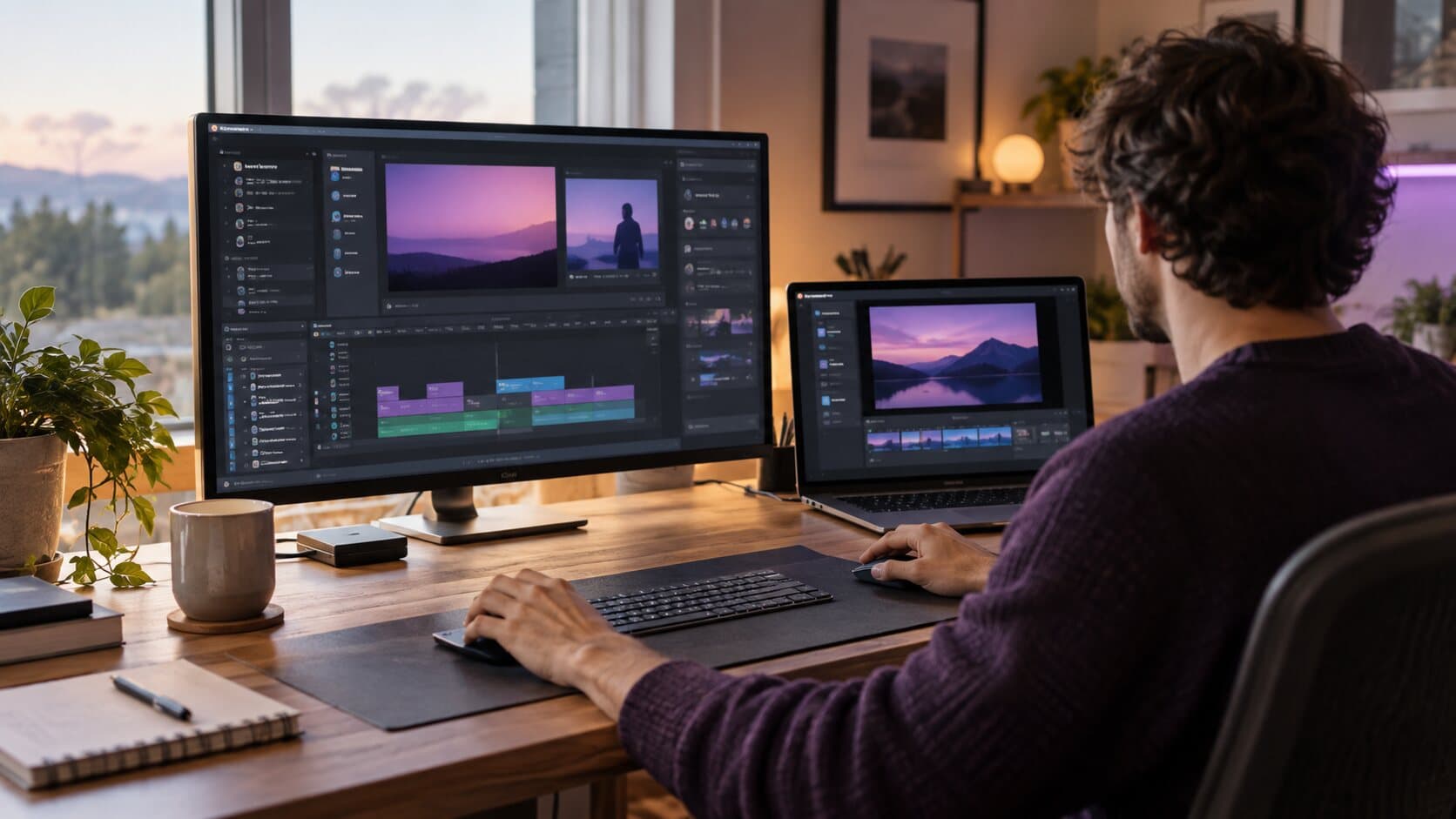
Comparisons
Camtasia is a broad production suite with annotations, quizzes and templates. ReScreen is a focused native Mac recorder. Here is which job each one fits.
6 min readInstall it, hit ⌥⌘R, and watch a take that would normally cost you an evening in a timeline come out finished.
macOS 13 Ventura or later · Apple Silicon and Intel