By Harpal Singh · · 5 min read
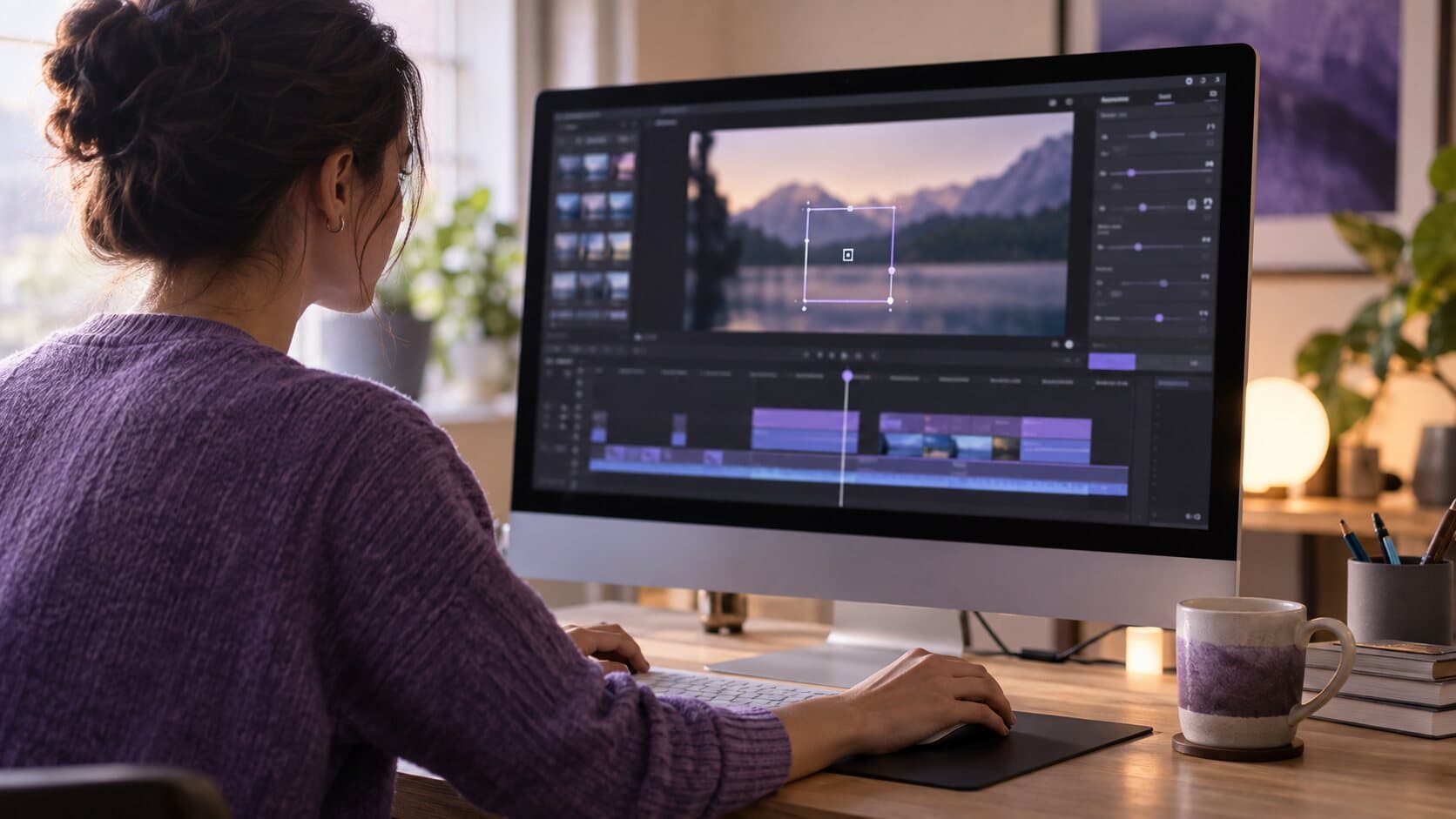
You have seen the look: a product demo where the camera glides into each click, the cursor moves like it was animated, and the app floats on a soft gradient. You want that for your own videos without learning motion graphics, so you searched for an auto zoom screen recorder for Mac and ended up comparing ReScreen vs Screen Studio.
This is the closest comparison we publish, because the two apps aim at the same result. Both are native Mac tools. Both zoom automatically. Both smooth the cursor and put the recording on a background.
So this article is about the differences that remain. Screen Studio is a trademark of its owner, ReScreen is not affiliated with it, and every Screen Studio fact below comes from its own website at the time of writing.
What do ReScreen and Screen Studio have in common?
Going by Screen Studio's site, it "automatically zooms in on actions you perform on your screen", turns shaky cursor movement into a smooth glide, records webcam, microphone and system audio, lets you change the background and spacing, supports horizontal and vertical output, and exports up to 4K at 60 FPS.
ReScreen does all of those things too. If that list is your whole requirement, either app will serve you, and you should choose on workflow, feel and price. The rest of this page is about where they diverge.
ReScreen vs Screen Studio at a glance
| ReScreen | Screen Studio | |
|---|---|---|
| Platform | macOS 13 Ventura or later | macOS; Ventura 13.1 or later recommended |
| Automatic zoom | Yes, from clicks, drags and scrolls | Yes |
| Cursor smoothing, idle hide | Yes | Yes |
| Export formats | MP4, MOV | MP4, GIF |
| Maximum export | 4K at 60 FPS | 4K at 60 FPS |
| Shareable links | No | Yes |
| iPhone and iPad recording over USB | No | Yes |
| On-device transcript and subtitles | No | Yes |
| Keyboard shortcut display | No | Yes |
| Motion blur | No | Yes |
| Pricing model | Monthly, yearly or one-time lifetime | Monthly or yearly subscription |
Pricing changes. Check Screen Studio's own site for its current plans before you decide.
When Screen Studio is the better choice
Screen Studio does several things ReScreen does not, and if any of these are central to your work, it is the better fit.
- You record iPhone or iPad apps. Screen Studio records a device connected by USB cable. ReScreen captures the Mac only, so a mobile app developer demoing on a real device should look there first.
- You want a link, not a file. Screen Studio includes shareable links in its plans. ReScreen has no hosting or share links at all.
- You need subtitles. Screen Studio can generate a transcript on your machine and add it as subtitles. ReScreen has no transcription; you would add captions in another tool or on the platform you publish to.
- You ship GIFs. For README files, changelogs and issue trackers, GIF export matters. ReScreen exports MP4 and MOV only.
- You teach shortcuts. Screen Studio can display the keyboard shortcuts you press. ReScreen never records keyboard input, by design, so it cannot show keystrokes.
- You like motion blur. Screen Studio applies motion blur to movement. ReScreen does not.
Where does ReScreen differ?
Zoom you can tune to the way you talk
Both apps zoom for you. ReScreen's approach is to record clicks, drags and scrolls as events while you record, then build editable zoom blocks when the take opens. The Smart Zoom feature page has the overview, and the walkthrough of how an auto zoom screen recorder builds zooms from clicks explains the mechanics.
What you control:
- "Zoom amount" from 1.1× to 4×, and seven easings from Smooth to Instant.
- "Combine nearby clicks" with a "Combine within" window, so a burst of clicks becomes one held zoom rather than several lurches.
- "Camera-aware framing", which steers the focus away from your camera bubble.
- Separate timings for delay, zoom in, stay zoomed, delay before return and zoom out.
- Per-block focus modes: Auto, Cursor, Click or Manual.
If you are the kind of person who adjusts every default, every Smart Zoom setting explained goes through them one by one.
Four tracks you can repair afterwards
ReScreen captures screen, camera, microphone and system audio as four independent tracks. Each audio track has its own mute, volume from 0 to 200 % and fades, and system audio defaults to 60 % so it sits under your narration. The camera is its own track too, so shape, size, position, border and shadow are all editing decisions rather than recording decisions. The camera and audio page covers the devices and cleanup options.
For a course creator, that means fixing a loud notification instead of re-recording the lesson. More in our piece on why separate audio tracks save recordings.
A recording that survives a bad day
ReScreen saves the take continuously while you record, not at the end, checks free disk space before and during the take, and offers "Recover interrupted recording" if something stops the app mid-take. Nothing is deleted automatically.
A file the moment you stop
A ready-to-play MP4 is written beside the project as soon as the take ends, remuxed with no second encode. It does not include zoom or styling, but it is something you can send while the polished export is still a decision.
Nothing uploaded, and a one-time option
Recording, editing and export are local, the app contains no analytics, and once you have signed in it keeps recording without a connection. ReScreen is paid only, with no free plan and no trial period: there are monthly, yearly and one-payment lifetime plans. Every plan has every feature.
How should you choose?
Skip the feature-count contest and ask what you publish.
- Mobile app demos, GIFs for docs, subtitled clips or quick links: Screen Studio covers those and ReScreen does not.
- Mac product demos, tutorials and lessons where audio repair, recovery, local-only footage and a lifetime licence matter: ReScreen is built for that.
If neither description fits, the best screen recorder for Mac roundup compares more tools by job-to-be-done.
A Screen Studio alternative for Mac, in short
The two apps overlap on automatic zoom and a polished cursor, and diverge on where the recording lives and how you pay. Choose ReScreen if you want everything local, separate audio tracks and a lifetime licence; choose Screen Studio if you want GIF export, share links, generated subtitles or iPhone capture. The alternatives hub lists every comparison, and apps like OBS Studio for Mac covers the people leaving a different tool.
Next step
Record the same 60-second walkthrough of your own product and judge the result, not the feature grid.
ReScreen runs on macOS 13 Ventura or later, on Apple Silicon and Intel. See the three plans on the pricing page, then download ReScreen for macOS.
Filed under