Topic
Articles about mac screen recording
Guides, comparisons and playbooks about mac screen recording, from the team behind ReScreen, the native screen recorder and editor for Mac.
Comparisons
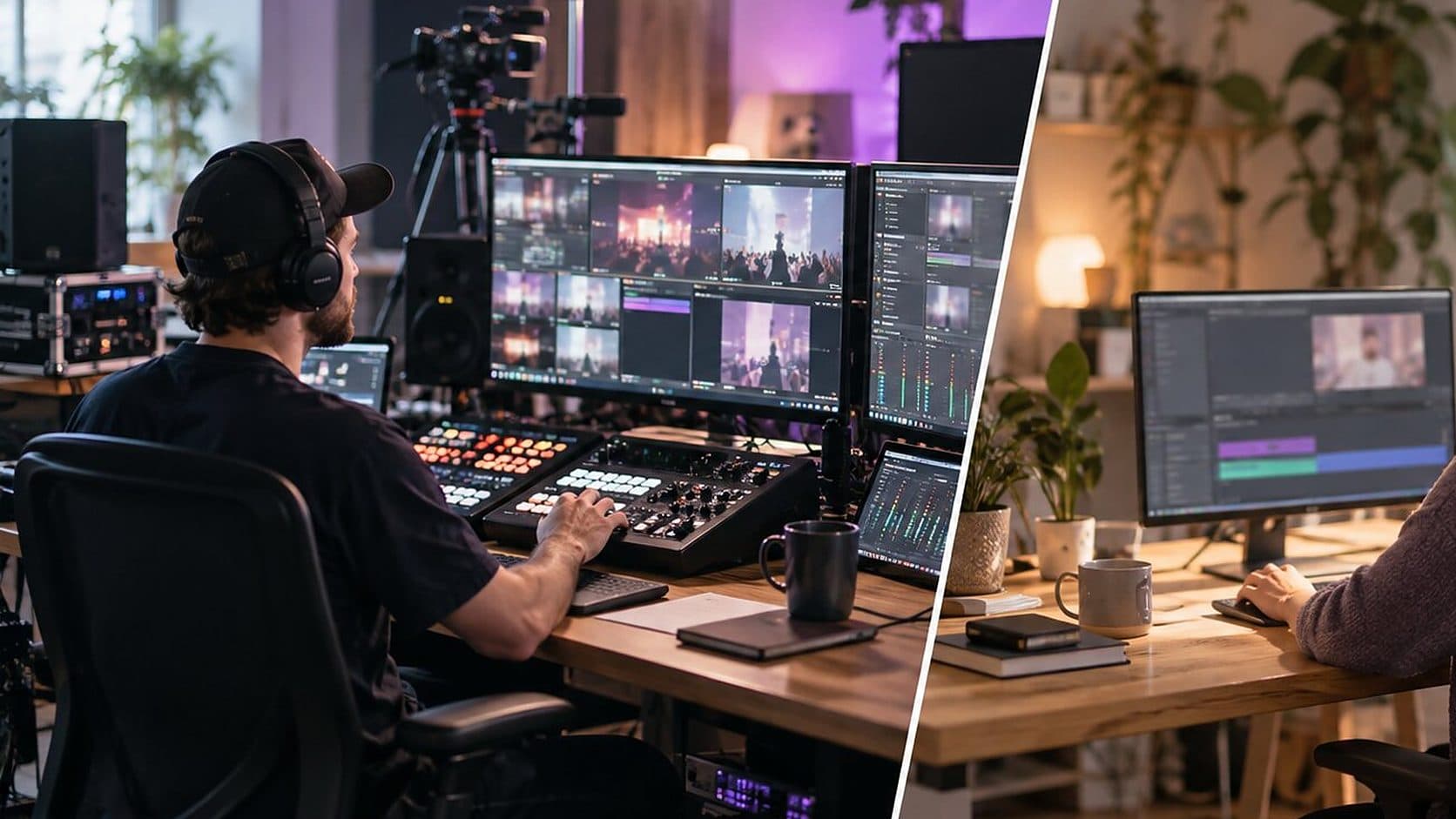
Apps Like OBS Studio for Mac: Simpler Alternatives for Recording Your Screen
OBS Studio is built for streaming, and most people who install it want to record a screen. Here are the apps like OBS that suit that job on a Mac, and when to stay.
5 min read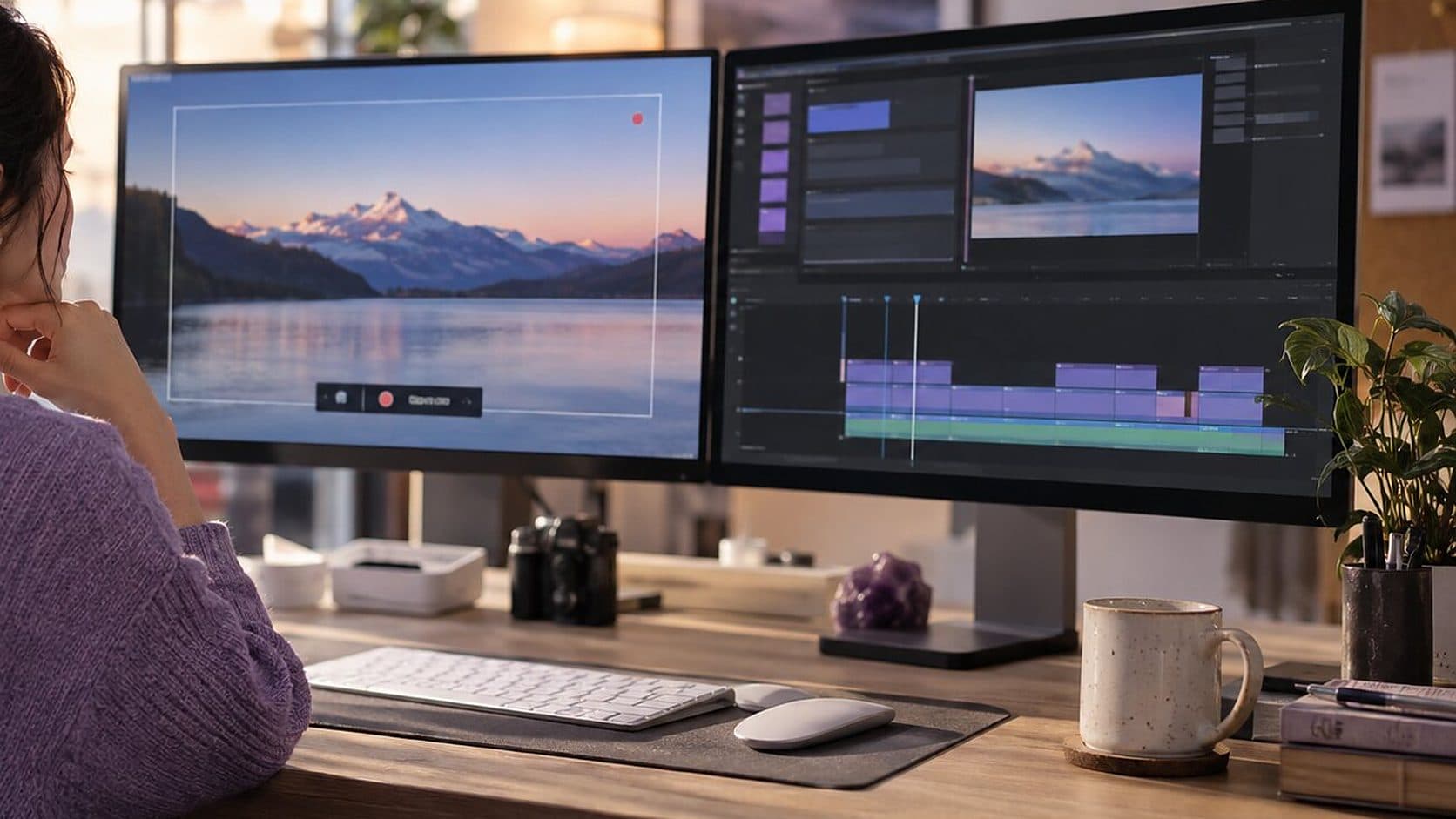
Comparisons
Free Screen Recorder for Mac: What You Get for Nothing and Where It Stops
A Mac can record its screen for nothing, and so can OBS Studio. Here is what each free option does, where it stops, and when paying for a recorder is worth it.
6 min read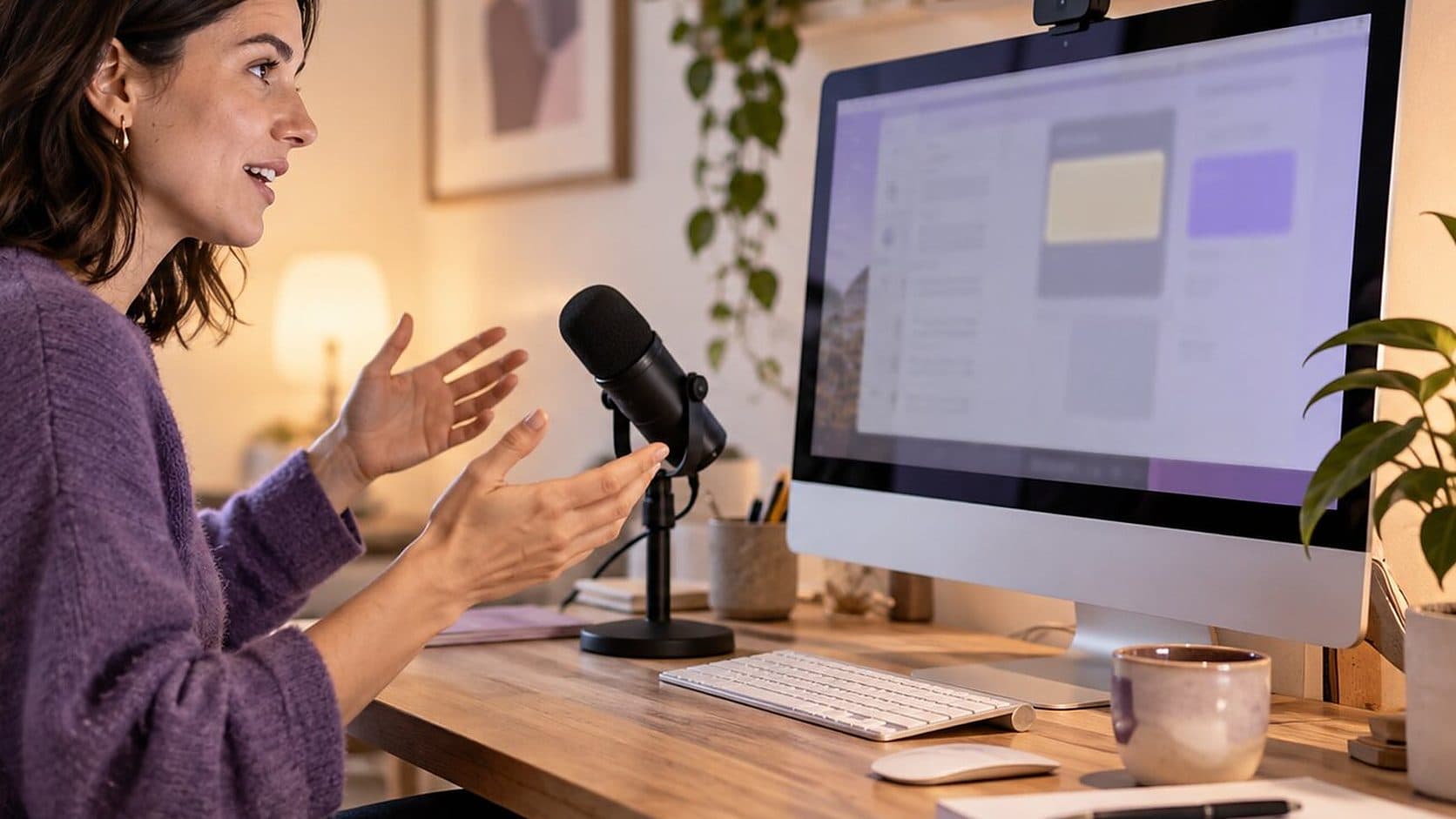
How-To Guides
How to Make a Screencast on a Mac: Plan, Record, Edit and Export
A screencast is a recording of your screen with a voice explaining it. Here is the workflow that makes one watchable, including coding screencasts and the edit.
4 min read
How-To Guides
How to Record a Zoom Meeting on a Mac: Built-In Recording, Screen Recorders and Consent
You can record a Zoom call with Zoom itself or with a screen recorder. Here is how each works, how to capture both sides of the sound, and the consent question.
5 min read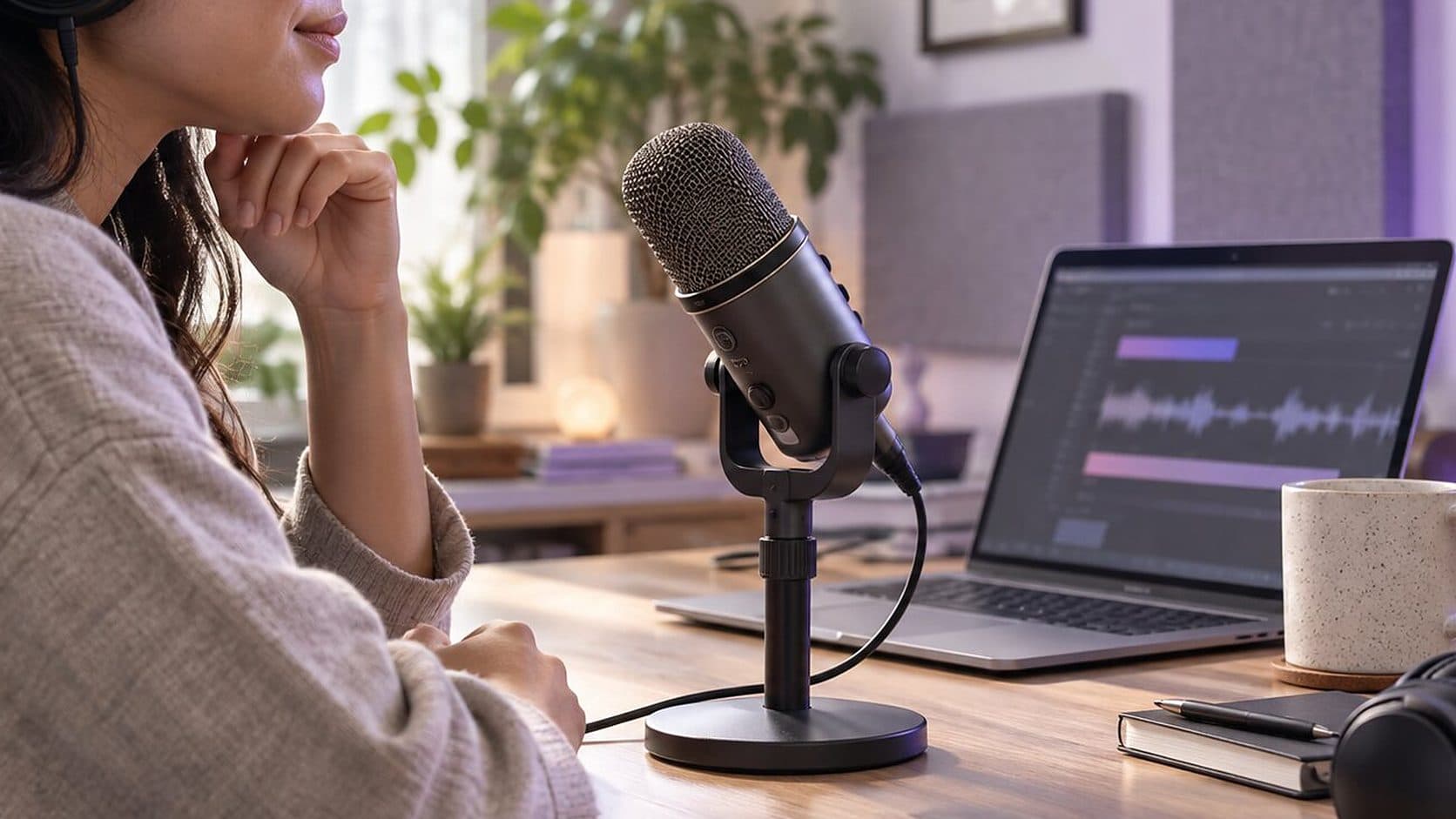
How-To Guides
How to Record Audio on a Mac: Voice Memos, QuickTime and System Sound
A Mac can record your voice with two apps you already have. Here is how each works, how to capture the sound the Mac plays, and when audio-only is the wrong tool.
5 min read
How-To Guides
How to Record Yourself on a Mac: Camera Video, Webcam and Screen Together
A Mac can record you with its own camera in a few clicks. Here are the built-in options, how to get a good picture, and how to record yourself and your screen together.
5 min read
How-To Guides
How to Screen Record on a Mac With Audio: Microphone, System Sound and QuickTime
A Mac screen recording can have your voice, the app's sound, both or neither. Here is what each built-in route captures, and how to get the sound you meant to.
5 min read
How-To Guides
How to Screen Record on a Mac: Shortcuts, QuickTime and When to Use a Recorder
Yes, you can screen record on a Mac without installing anything. Here are the two built-in routes, where the file goes, how to stop, and where they run out.
7 min read
How-To Guides
How to Take a Screenshot on a Mac: Every Shortcut, the Clipboard and Where Files Go
Shift-Command-3, 4 and 5 cover almost everything. Here is what each does, how to copy to the clipboard, where the file goes and when you want a recording instead.
6 min read
Video Marketing
How to Record a Software Demo
A step-by-step method for recording a software demo people can follow: prepare the machine, capture the right window, get the microphone right, then trim and export.
14 min read
Comparisons
ReScreen vs Cap: A Paid Mac Recorder Against an Open-Source One
Cap is open source, cross-platform and free for personal use. Here is exactly where that is the right answer, and the three places ReScreen still differs.
5 min read
Comparisons
ReScreen vs CleanShot X: A Video Recorder and a Capture Tool, Compared
Both zoom into your clicks and put the recording on a background. One of them is also the best screenshot tool on the Mac, and that is the decision.
6 min read
Comparisons
ReScreen vs ScreenFlow: How Much Video Editor Do You Actually Need?
ScreenFlow is a video editing suite that records. ReScreen is a recorder that edits. The right answer depends on what you do after you press stop.
5 min read
Product Features
4K 60 FPS Screen Recording on Mac: Resolution, Codecs and Quality Explained
Blurry text and choppy scrolling come from the wrong settings, not the wrong Mac. Here is what resolution, frame rate, codec and quality actually do.
6 min read
Product Features
A Private, Offline Screen Recorder for Mac: Nothing Is Ever Uploaded
Screen recordings are the most sensitive video you make. Here is what a recorder that never uploads your footage looks like, and who needs one.
6 min read
Product Features
A Screen Recorder With a Built-In Editor: Cut the Take Without Leaving the App
The take is fine except for eleven seconds. ReScreen opens a timeline the moment you stop, so fixing it never means importing into another video editor.
6 min read
Product Features
Crash-Safe Screen Recording on Mac: Never Lose a Long Take Again
A recorder that writes one big file loses everything when something goes wrong. Here is how saving the take continuously, and offering to recover it, protects a long recording.
6 min read
Feature Guides
Cursor Smoothing and Click Effects: A Guide to Every Cursor Setting in ReScreen
A setting-by-setting guide to making the pointer readable: size, smoothing, idle hide, click effects and click colour, with values for each kind of video.
6 min read
Video Marketing
Customer Onboarding Videos That Shorten Time-to-Value and Reduce Churn
New customers rarely leave because the product is bad. They leave because they never reached the part that is good. Short onboarding videos get them there.
6 min read
Video Marketing
How to Build a YouTube Channel for a Software Company That Customers Actually Use
Most software company channels are a webinar graveyard. Here is a practical way to build a tutorial channel people search for, watch and come back to.
6 min read
Use Cases
How to Edit Screen Recordings Faster: Stop Spending Three Hours on a Five-Minute Video
A five-minute screen recording should not cost an afternoon. Here is where the editing time really goes, and a record-to-export workflow that removes it.
6 min read
Use Cases
How to Fix Bad Audio in Screen Recordings: Quiet Voice, Loud App Sounds and Background Noise
A quiet voice, a deafening notification and a humming fan are three different problems. Here is why one flattened track hides them, and how to fix each.
6 min read
Use Cases
How to Record Confidential Screens Safely When the Cloud Is Not an Option
Client data, NDA work, finance and health screens should not pass through a cloud recorder. Here is a local-only recording workflow for Mac.
6 min read
Product Features
How to Record System Audio on Mac Without a Virtual Audio Driver
Your Mac recording has your voice but not the app's sound. Here is why that happens, and how to capture system audio without a loopback driver.
6 min read
Product Features
Instant MP4 Screen Recording: A Playable File the Moment You Stop
Most recorders hand you a project, not a file. ReScreen writes a playable MP4 the moment a take stops, with no second encode.
6 min read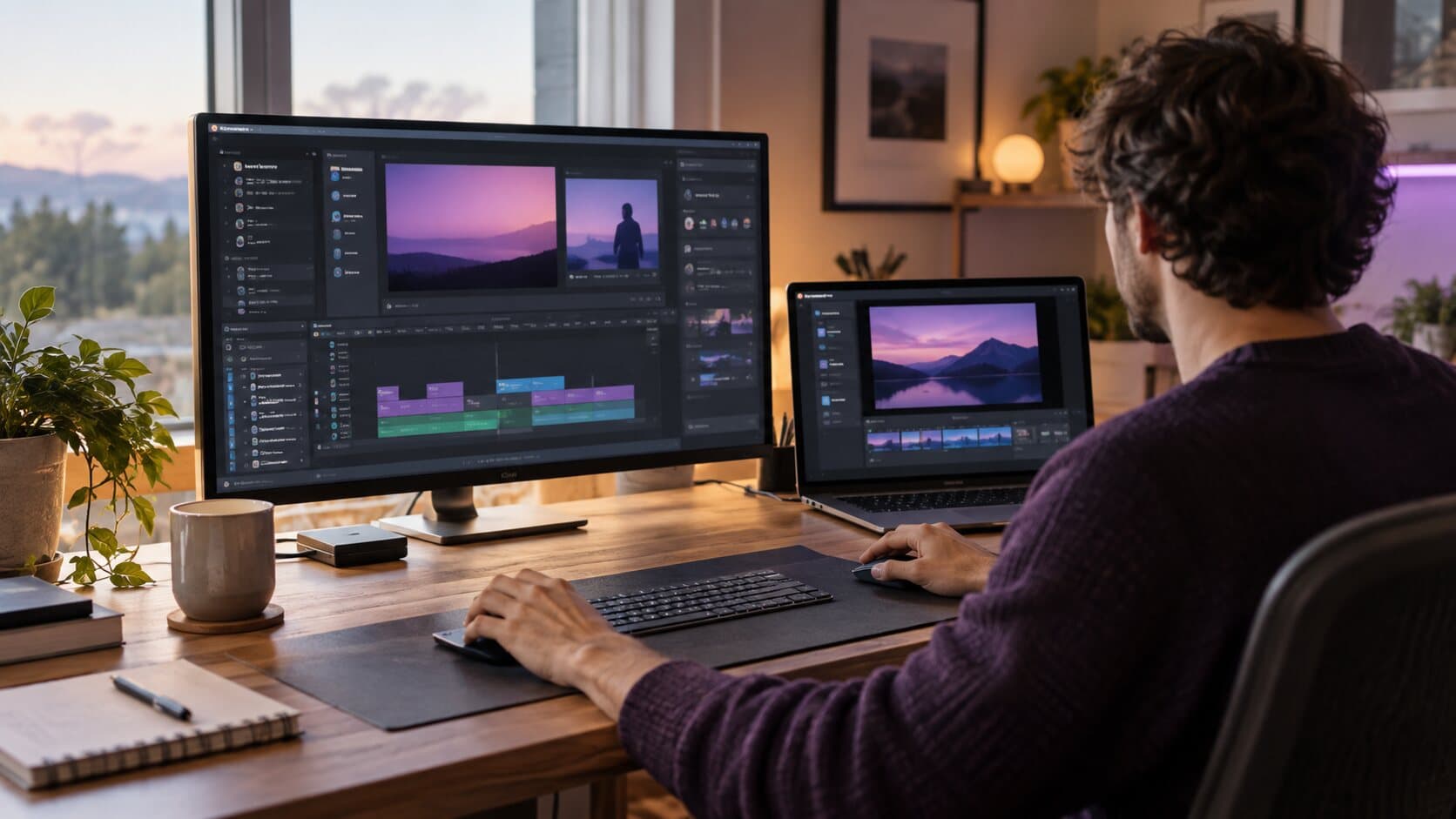
Comparisons
ReScreen vs Camtasia: A Full Production Suite or a Native Mac Recorder?
Camtasia is a broad production suite with annotations, quizzes and templates. ReScreen is a focused native Mac recorder. Here is which job each one fits.
6 min read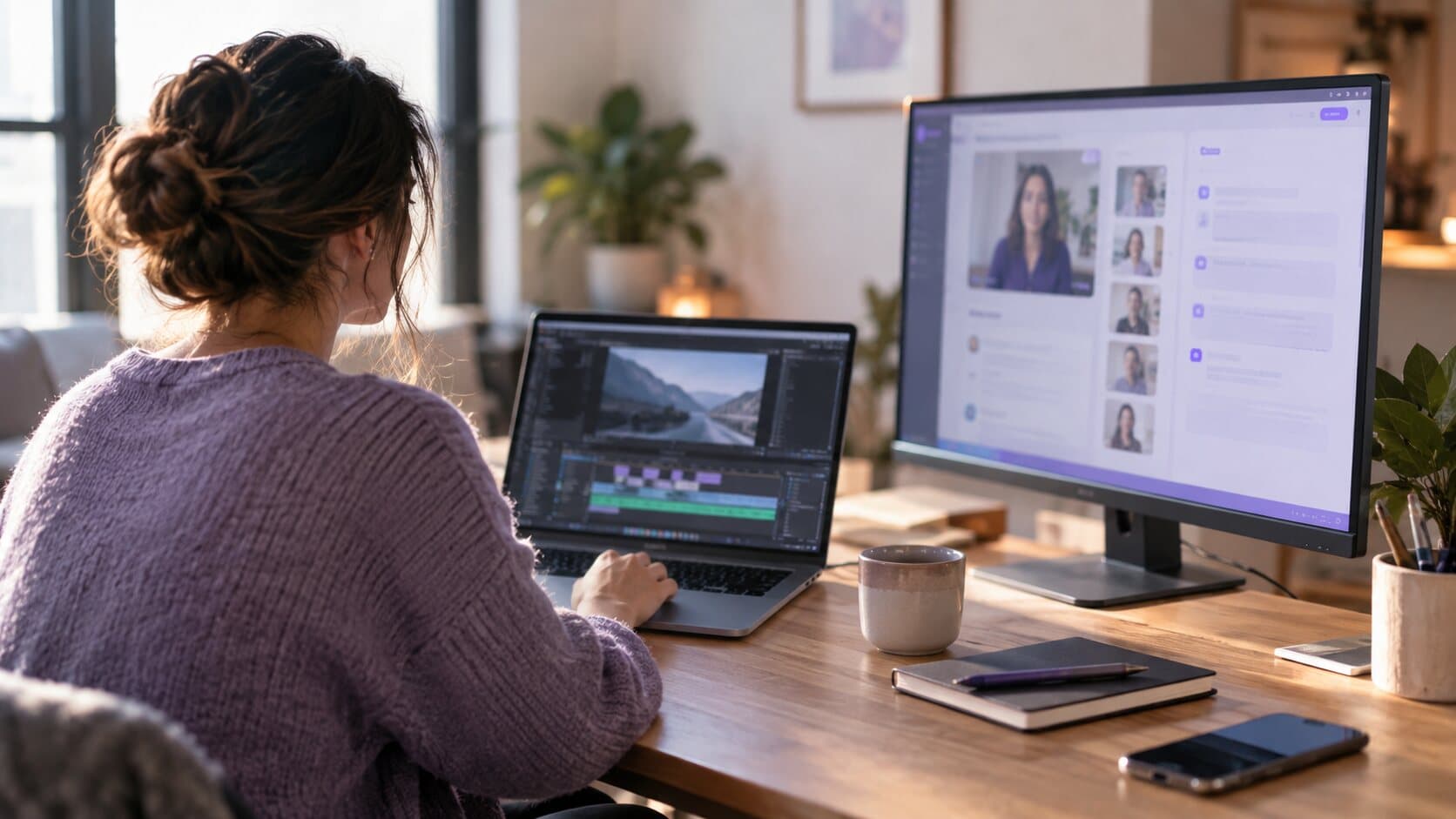
Comparisons
ReScreen vs Loom: Local Polished Video or Cloud Async Messaging?
Loom sends a link in seconds. ReScreen makes a finished video that never leaves your Mac. Here is how to choose between them by the job you are doing.
5 min read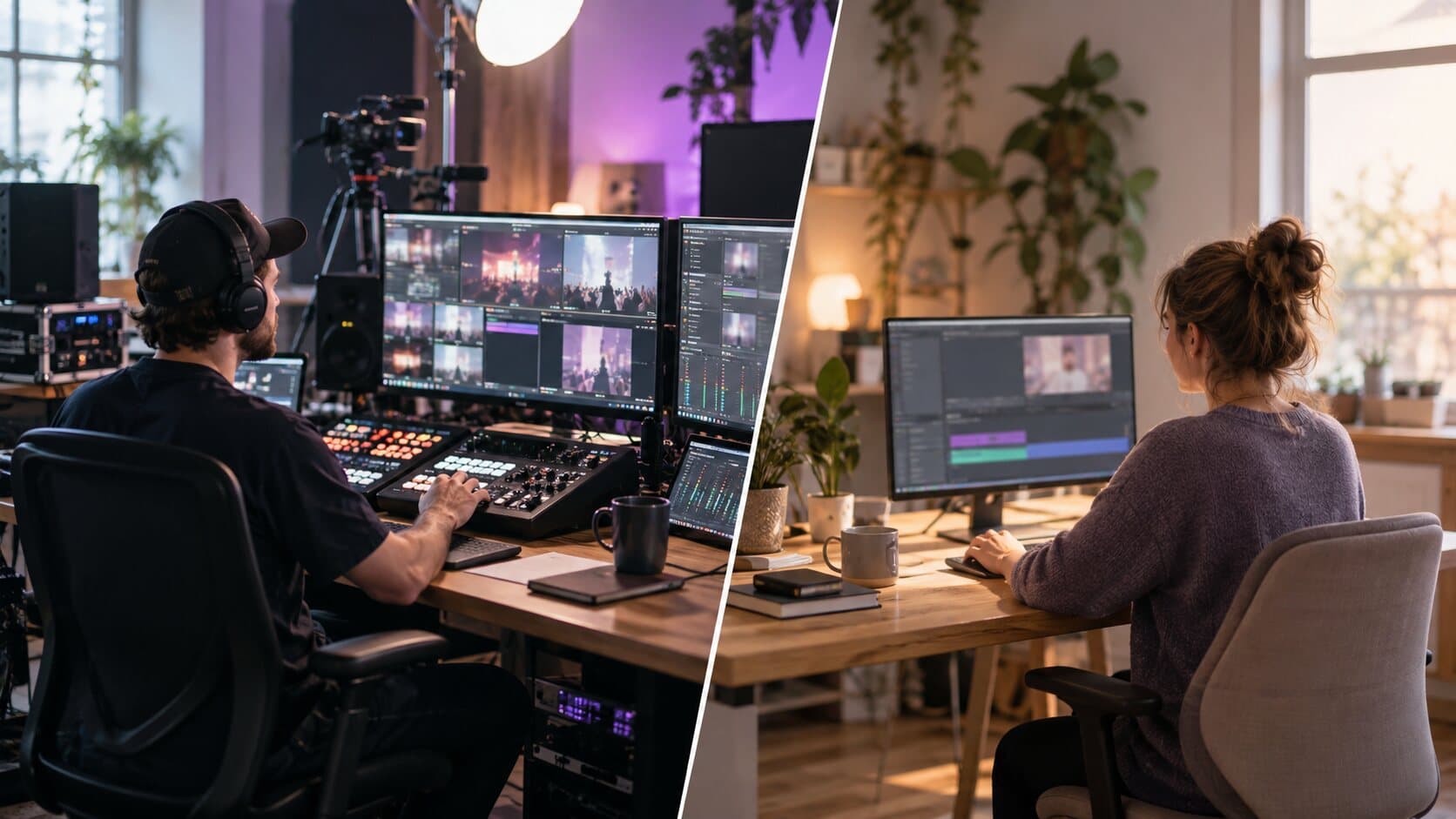
Comparisons
ReScreen vs OBS Studio: Which Mac Screen Recorder Fits the Job You Actually Have?
OBS Studio is a live production studio. ReScreen is a recorder and editor for polished tutorials. Here is how to tell which job you actually have.
6 min read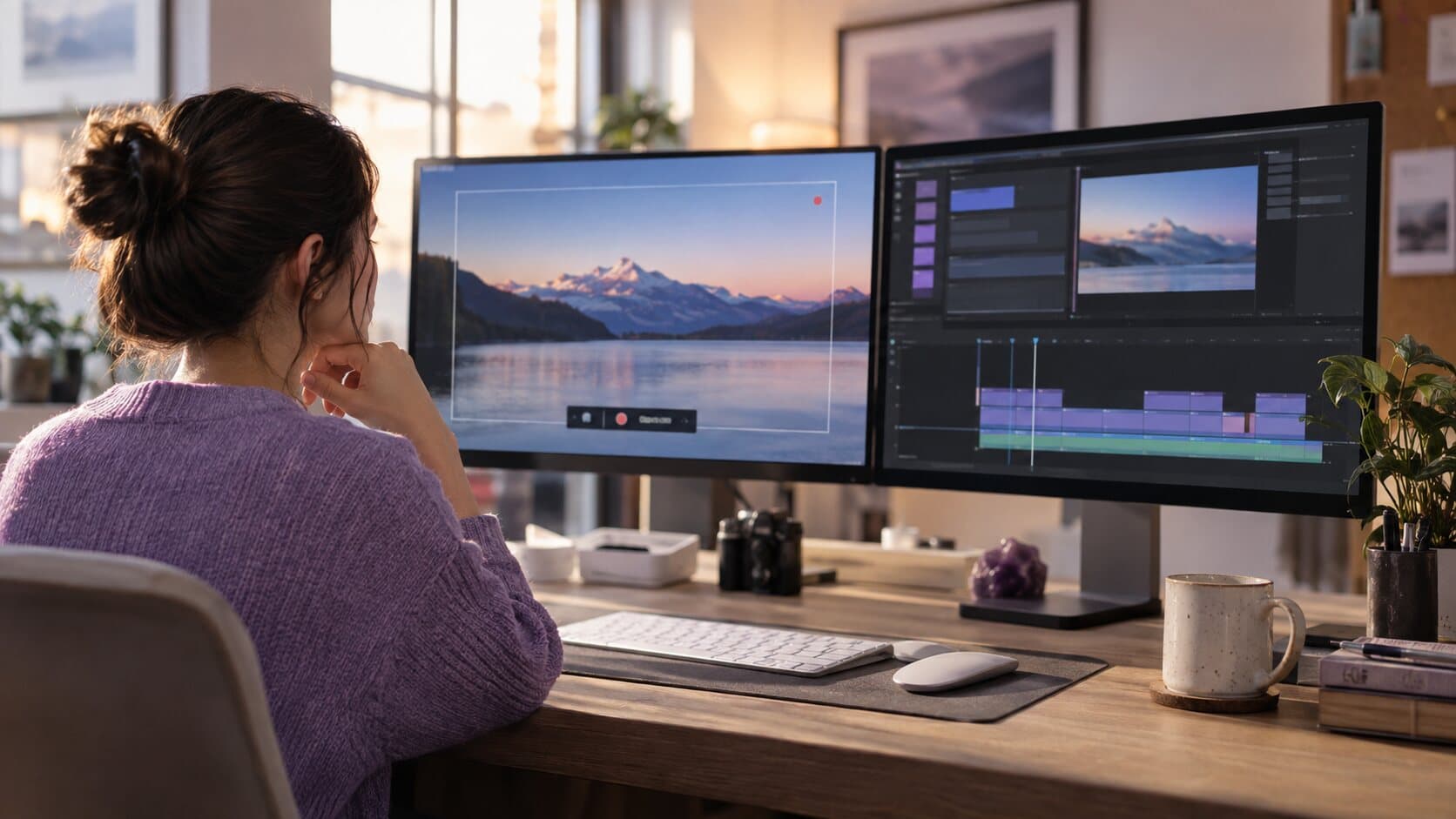
Comparisons
ReScreen vs QuickTime Player: Built-In Recorder or Purpose-Built Tool?
QuickTime Player is already on your Mac and costs nothing. Here is exactly where it is enough, and where a purpose-built recorder earns its price.
6 min read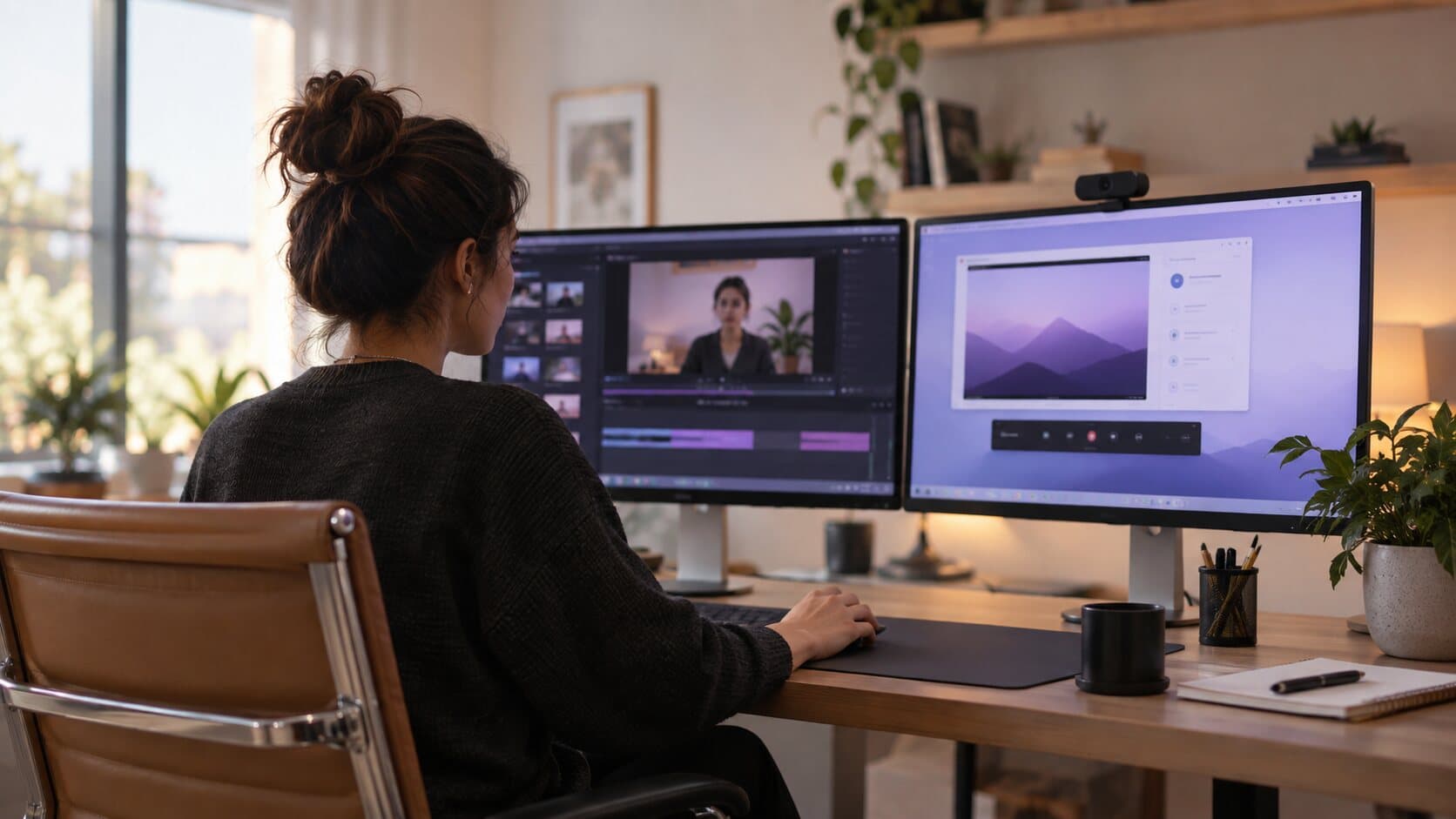
Comparisons
ReScreen vs Screen Studio: An Honest Comparison for Mac Users
Both record your Mac screen and zoom in for you. The differences are in the details: audio tracks, crash recovery, sharing, GIFs and how you pay.
5 min read
Video Marketing
Sales Demo Videos for Outbound: A Playbook for Personalised Async Demos
Prospects ignore paragraphs and dodge calendar links. Here is a repeatable way to send a short, personal demo video instead — and record it in one take.
6 min read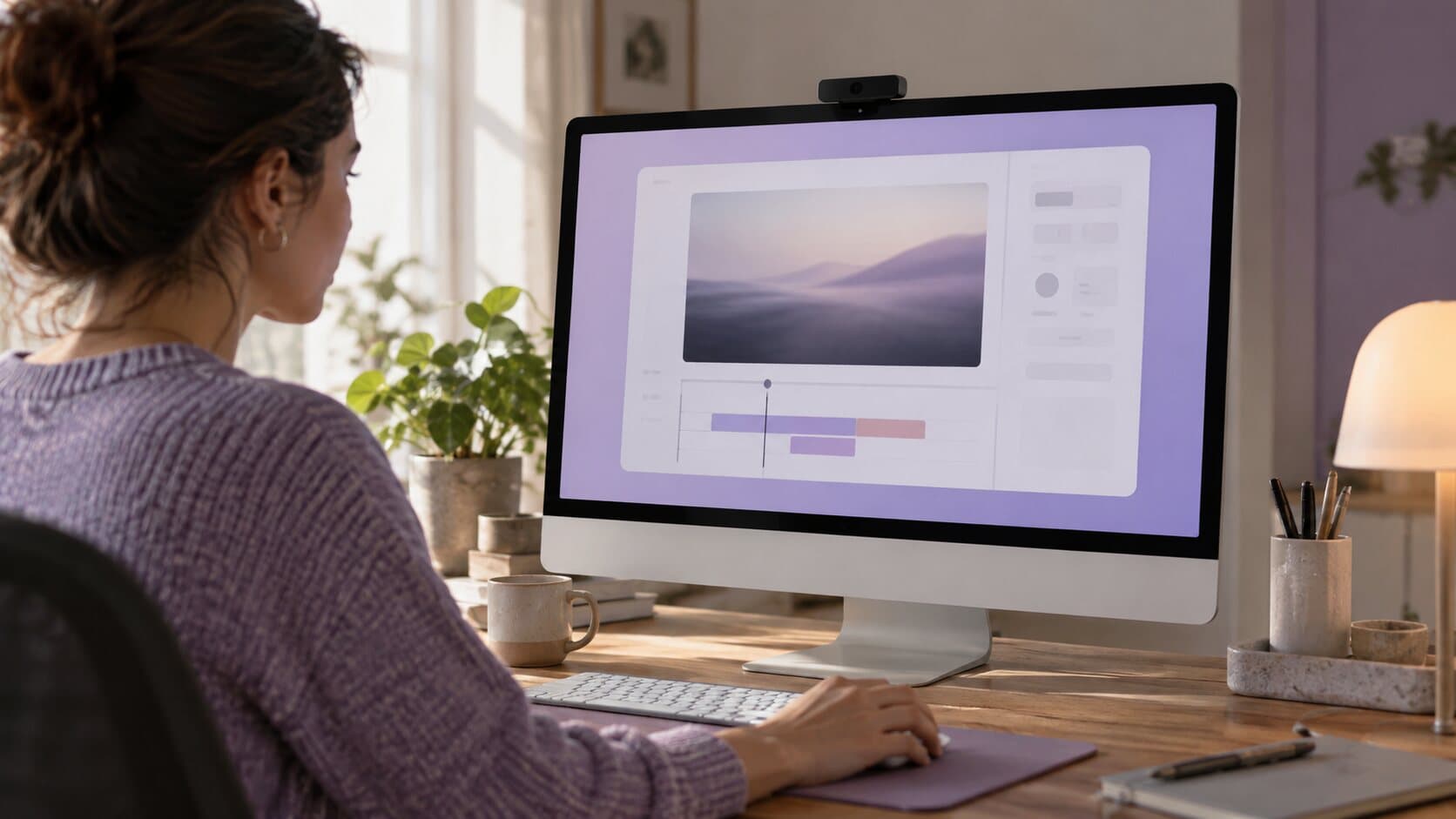
Product Features
Screen Recording Backgrounds and Padding: Make a Capture Look Designed
A raw capture reads as a screenshot that moves. Padding, rounded corners, a shadow and a background of your own make the same take look designed.
6 min read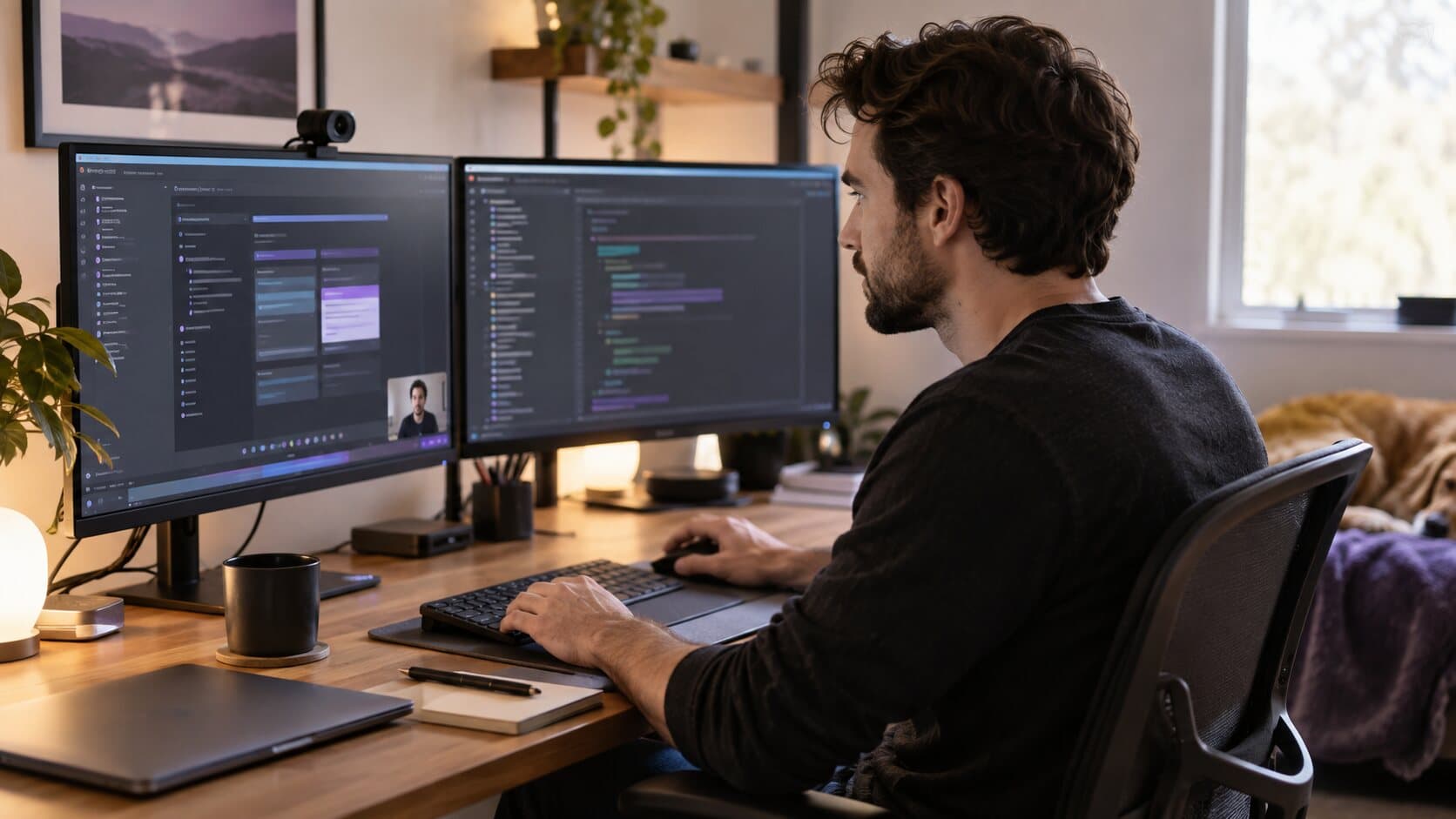
Use Cases
Screen Recording for Developers: Bug Reports, PR Demos and Walkthroughs People Can Follow
Bug reports nobody can reproduce, PR demos nobody can read. A practical Mac workflow for developer screen recordings that reviewers can follow.
6 min read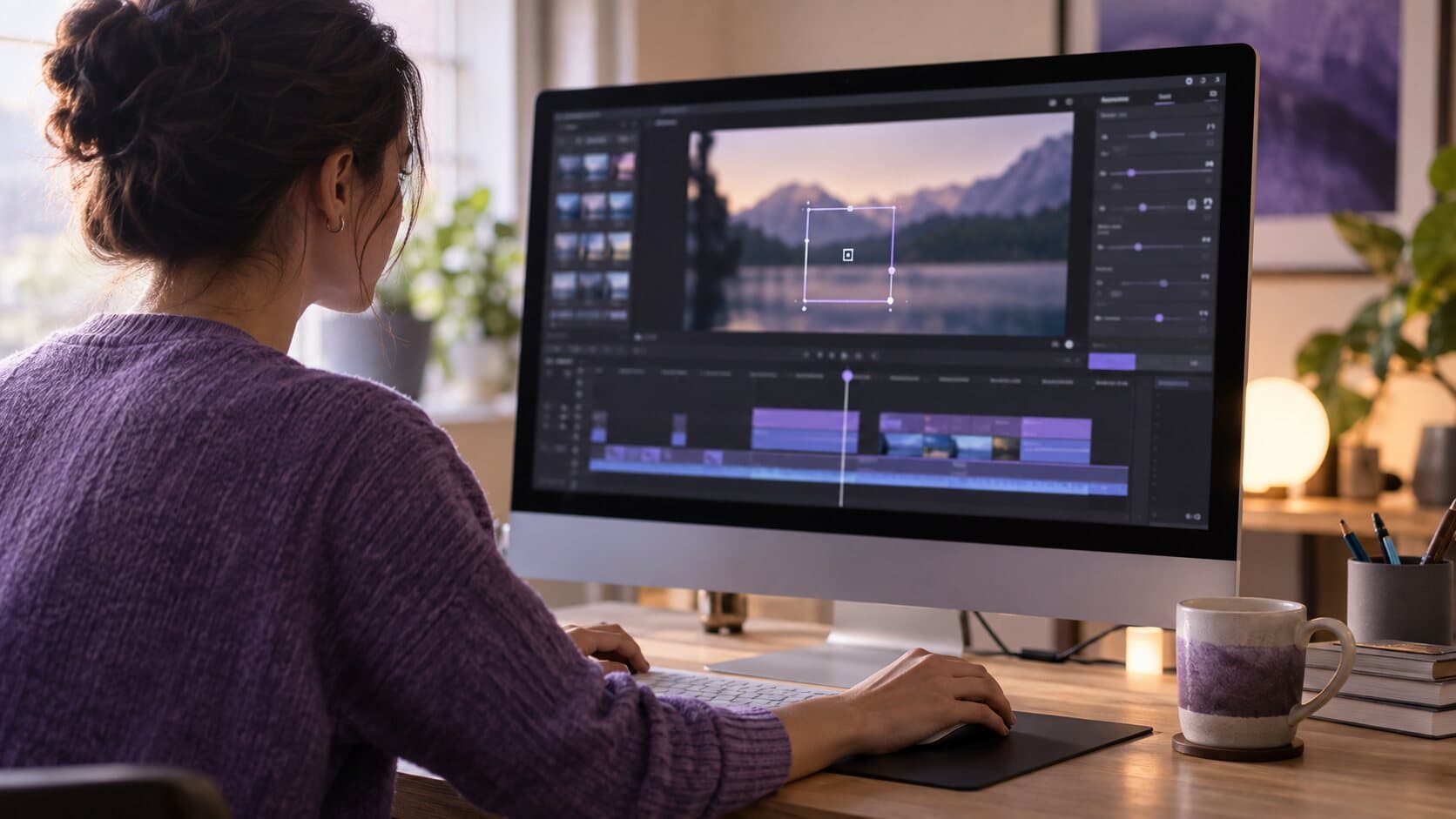
Feature Guides
Smart Zoom Settings Explained: Every Control, Default and Recommended Value
What each Smart Zoom control in ReScreen does, what it defaults to, and the values worth using for tutorials, product demos, social clips and courses.
6 min read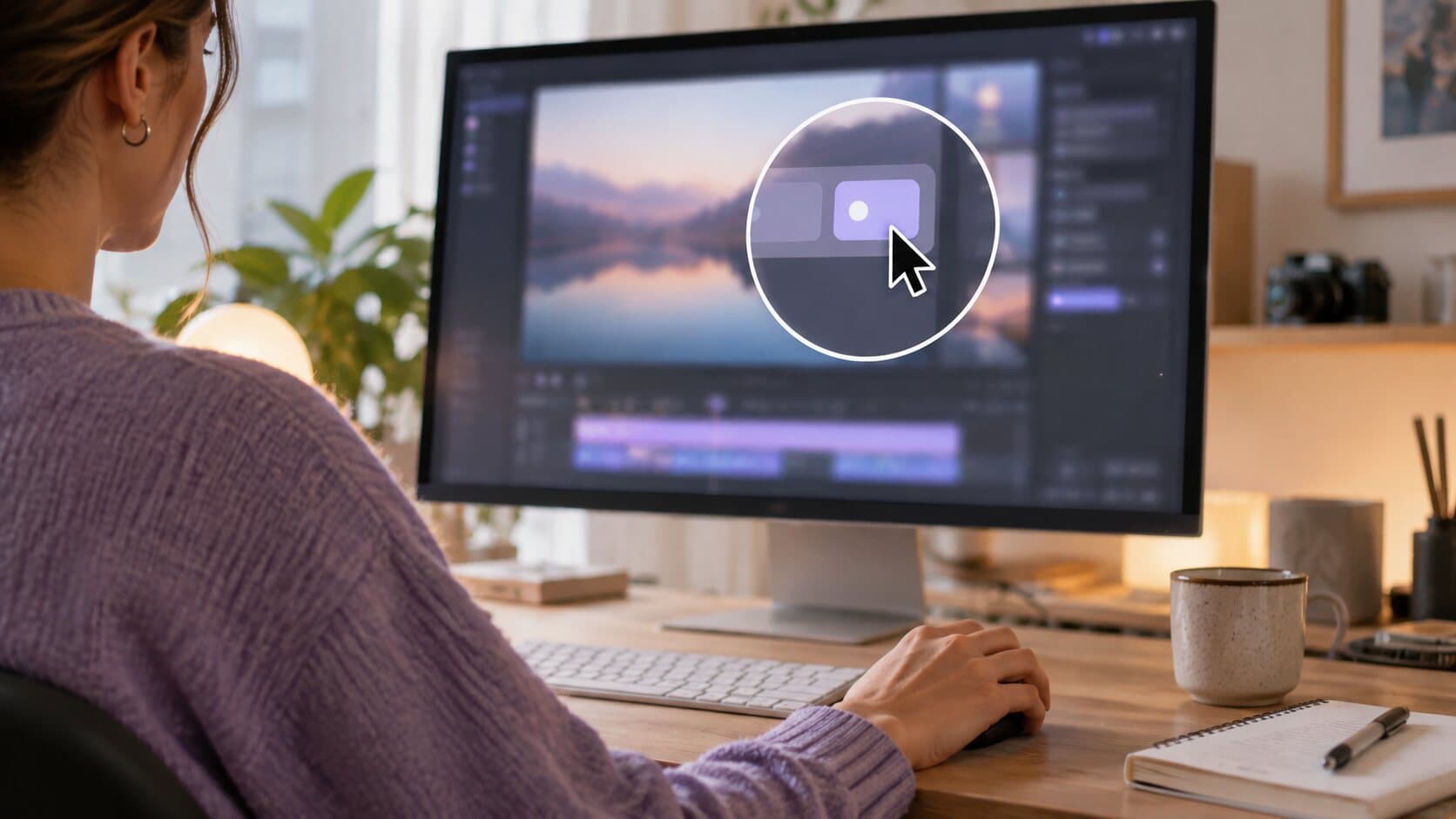
Product Features
The Auto Zoom Screen Recorder for Mac That Builds Zooms From Your Clicks
Viewers cannot read a 40-pixel button on a 4K capture. Here is how Smart Zoom builds editable zooms from your clicks, and who it saves the most time.
6 min read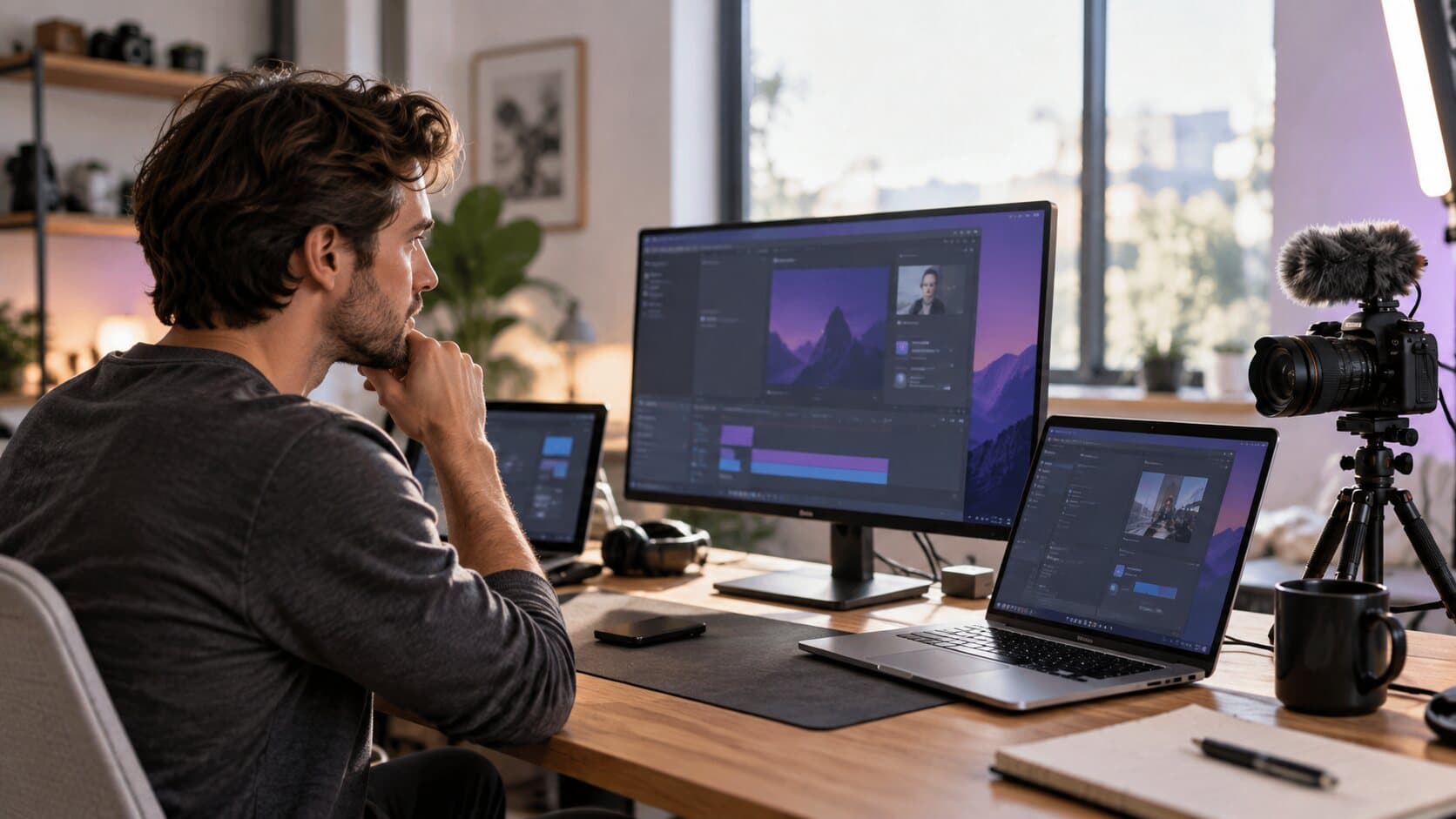
Comparisons
The Best Screen Recorder for Mac Depends on the Job: An Honest Roundup
Nine Mac screen recorders, sorted by the job each one does best, from quick clips to live streams. Written by the makers of ReScreen, and we say so up front.
10 min read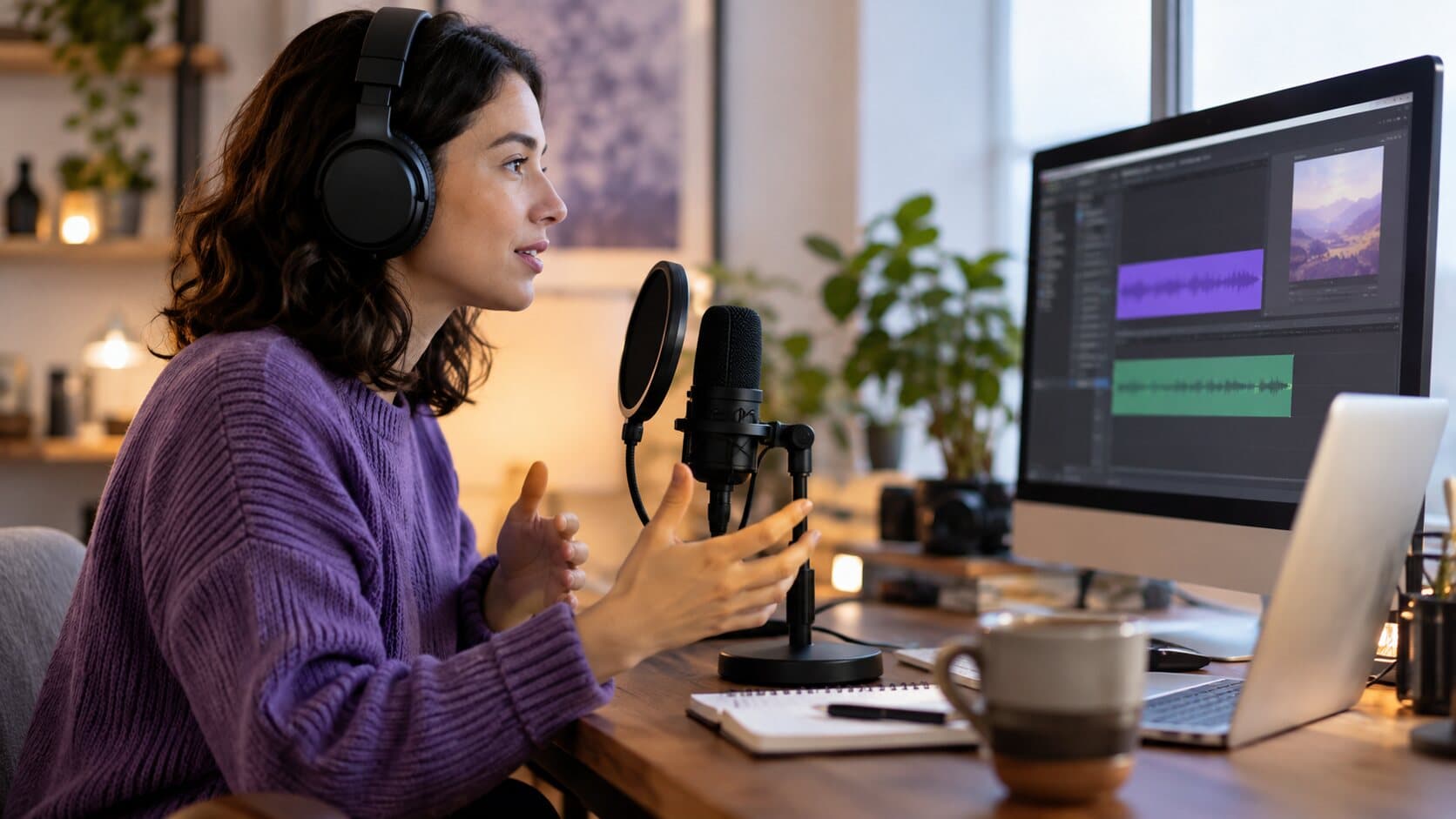
Product Features
Why Separate Audio Tracks Save Your Screen Recording
One flattened audio track means one loud ping can ruin a good take. Here is what recording mic and system audio separately lets you fix afterwards.
6 min readAbout mac screen recording articles
Recording the screen on a Mac starts with what macOS already gives you and ends with a recorder built for the job. These articles cover how to screen record on a Mac, the best screen recorder for Mac, free screen recorders for Mac and the features page for what ReScreen adds.
Record the next one properly
Install it, hit ⌥⌘R, and watch a take that would normally cost you an evening in a timeline come out finished.
macOS 13 Ventura or later · Apple Silicon and Intel