By Harpal Singh · · 6 min read
You searched for ReScreen vs OBS Studio because you have a tutorial or a product demo to make, and everyone on every forum said the same thing: just use OBS. So you installed it, met an empty scene, and twenty minutes later you were reading about encoders instead of recording.
That is not a flaw in OBS Studio. It is a sign that OBS was built for a different job from the one you have. This comparison is about telling those two jobs apart.
A note on fairness: ReScreen is our product. OBS Studio is a trademark of its owners and we have no affiliation with the project. Statements about OBS were checked against obsproject.com at the time of writing.
What is OBS Studio actually built for?
The OBS project describes it as "free and open source software for video recording and live streaming", available for Windows, Mac and Linux. The important word is live. Its core idea is the scene: a composition of sources — window captures, images, text, browser windows, webcams, capture cards — that you switch between with custom transitions while the broadcast is running.
Around that sit an audio mixer with per-source filters such as noise gate, noise suppression and gain, a Studio Mode for previewing a scene before pushing it live, hotkeys for nearly every action, and an API that lets plugins and scripts extend it. That is a television control room on your desk.
What is ReScreen built for?
ReScreen is a native macOS recorder and editor for the video you record once and publish later: the tutorial, the product demo, the course lesson. It assumes the recording is the easy part and the edit is what eats your evening. So it records your clicks, drags and scrolls as events while it captures, and when you stop, the take opens in a timeline with zoom blocks already built from those clicks. That is Smart Zoom, and it replaces the hour of hand-keyframing that makes a 40-pixel button readable. The longer explanation is in our guide to how an auto zoom screen recorder builds zooms from clicks.
ReScreen vs OBS Studio at a glance
| OBS Studio | ReScreen | |
|---|---|---|
| Cost model (at the time of writing) | Free and open source | Paid: monthly, yearly or lifetime; no unpaid tier |
| Platforms | Windows, macOS, Linux | macOS 13 Ventura or later only |
| Live streaming | Yes | No |
| Scenes, sources and transitions | Yes, unlimited scenes | No; one take with screen, camera, mic and system audio tracks |
| Plugins and scripting | Yes, via its API | No |
| Built-in timeline editor | No; its knowledge base points to separate post-production tools | Yes: split, trim, ripple delete, per-section speed |
| Mac system audio without a virtual driver | Yes, on macOS 13 and later per its docs | Yes |
Check obsproject.com for current details; a comparison page is a snapshot.
Where does the time go with each tool?
With OBS, the time goes before and after the take
Before: you build a scene, add a macOS Screen Capture source, add a camera source, position it, choose an output format and an encoder. OBS's own documentation recommends recording to MKV, because an MKV file survives a recording that does not stop gracefully, and it includes a remux-to-MP4 step for afterwards.
After: OBS records the scene as you composed it, so the webcam stays wherever you put it. Anything you want to change — the pause where you hunted for a tab, the camera covering a menu — happens in a separate video editor, which is why the OBS knowledge base maintains a list of post-production tools.
With ReScreen, most of that is a default
You pick a display, window, application or region, press ⌥⌘R and talk. Screen, camera, microphone and system audio are captured as four independent tracks, so the camera's shape, size and position are decisions you make afterwards.
The cursor is redrawn from the recorded events, which means its size, smoothing and click effects are editable too. Cutting the dead air is a ripple delete in the built-in timeline editor. If resolution is your deciding factor, our guide to 4K and 60 FPS screen recording on a Mac covers the codec and quality choices.
Reliability is a default too: ReScreen saves the take continuously while you record, so an interrupted take can be recovered up to the moment it was interrupted.
When OBS Studio is the better choice
Genuinely often. Choose OBS Studio when:
- You stream. ReScreen has no live streaming at all. OBS is built for it, and that alone settles it.
- You need scenes. Switching between sources live, with transitions, is exactly what OBS is for. ReScreen records one composition per take.
- Your budget is zero. OBS is free and open source. ReScreen has no unpaid plan.
- You are not only on a Mac. OBS runs on Windows and Linux too, so a mixed team can share one workflow. ReScreen is Mac-only.
- You want plugins, scripts or capture cards. OBS's API and source types go well beyond a screen and a webcam.
- You value open source. ReScreen is closed-source commercial software.
Note also what ReScreen leaves out whatever you compare it with: no annotations or text overlays, no captions, no hosted share links.
When ReScreen is the better choice
Choose ReScreen when the output is a recorded video that has to look edited, and you are the one who would have to edit it:
- Founders and product marketers recording a demo in which viewers must see every click, without learning a motion-graphics tool.
- Course creators and support teams who publish weekly and cannot afford an editing pass per video. Our guide to making software tutorial videos customers actually finish shows that workflow end to end.
- People recording sensitive screens, since recording, editing and export all stay on the Mac.
How should you decide?
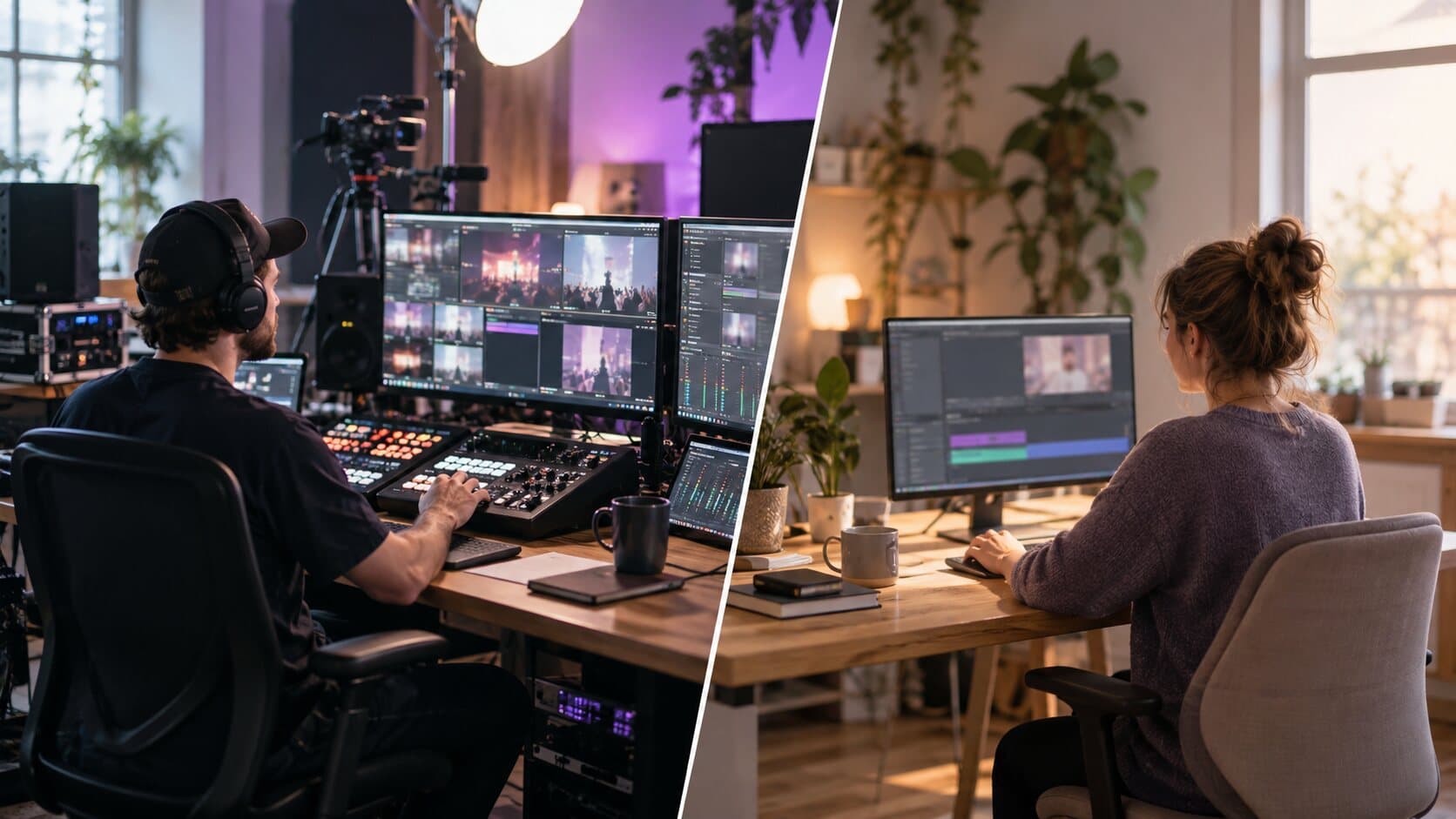
Ask one question: is the video live, or is it finished later?
If it is live, or built from many switching sources, use OBS Studio; it costs nothing and it is built for exactly that. If it is a tutorial, demo or lesson that must be clear, zoomed and cut before anyone sees it, pick the recorder that does the editing groundwork.
If you are still weighing other options, our roundup of the best screen recorder for Mac by job puts six tools side by side.
How to use OBS Studio to record your screen on a Mac
If you have decided to stay with OBS, the shortest route is this. Create a scene, add a macOS Screen Capture source and choose the display or window. Add an audio source if you want your voice, and enable desktop audio if you want the app's sound. Set the output to a recording format; OBS's own documentation recommends MKV for resilience, with a remux to MP4 afterwards. Then start recording.
That is several steps before the first recording, and it is why people look for an easy screen recorder instead of OBS: nothing in it is wrong, but the first recording has several steps, and the editing happens somewhere else. Apps like OBS Studio for Mac lists the alternatives by job, and an OBS Studio alternative for a Mac that is built for finished demos is what the sections above describe.
Next step
ReScreen is paid from day one, with every feature on every plan and no watermark; the pricing page lists the monthly, yearly and lifetime options, and you can download ReScreen for macOS when you are ready.
Filed under