By Harpal Singh · · 6 min read
You recorded a clean walkthrough on a big, sharp display. Then you watched it back in a browser tab and could not read your own interface. The button you clicked is forty pixels wide on a 4K screen, the menu is a grey smudge, and the viewer has no idea where to look. This is the problem an auto zoom screen recorder for Mac exists to solve: the recording is accurate, and nobody can follow it.
The traditional fix is worse than the problem. You import the file into a video editor, find the frame where you clicked, add a scale keyframe, add a position keyframe, add two more to come back out, and repeat that for every click in a six-minute video.
Why do screen recordings need zoom at all?
Your display and your viewer's player are different sizes. A 4K or Retina capture squeezed into a 1080p embed, or a phone held in one hand, shrinks every control to a fraction of what you saw while recording. The detail is there; it is just too small to read.
Zoom does two jobs at once. It makes the target large enough to read, and it tells the viewer where to look without you saying "top right, no, a bit further down". If that sounds familiar, the longer breakdown of why viewers cannot see what you click covers the other half of the fix: the cursor itself.
What is wrong with keyframing zooms by hand?
Nothing, if you enjoy it and have an afternoon. For everyone else, manual zooming fails in three predictable ways:
- It is slow. Each zoom is four keyframes and a lot of scrubbing to find the exact frame of the click.
- It is fragile. Cut ten seconds out of the intro and every keyframe after it is now in the wrong place.
- It is inconsistent. Zoom number three is 1.4×, zoom number nine is 1.8×, and the video feels restless without anyone knowing why.
How Smart Zoom builds zooms from clicks, not pixels
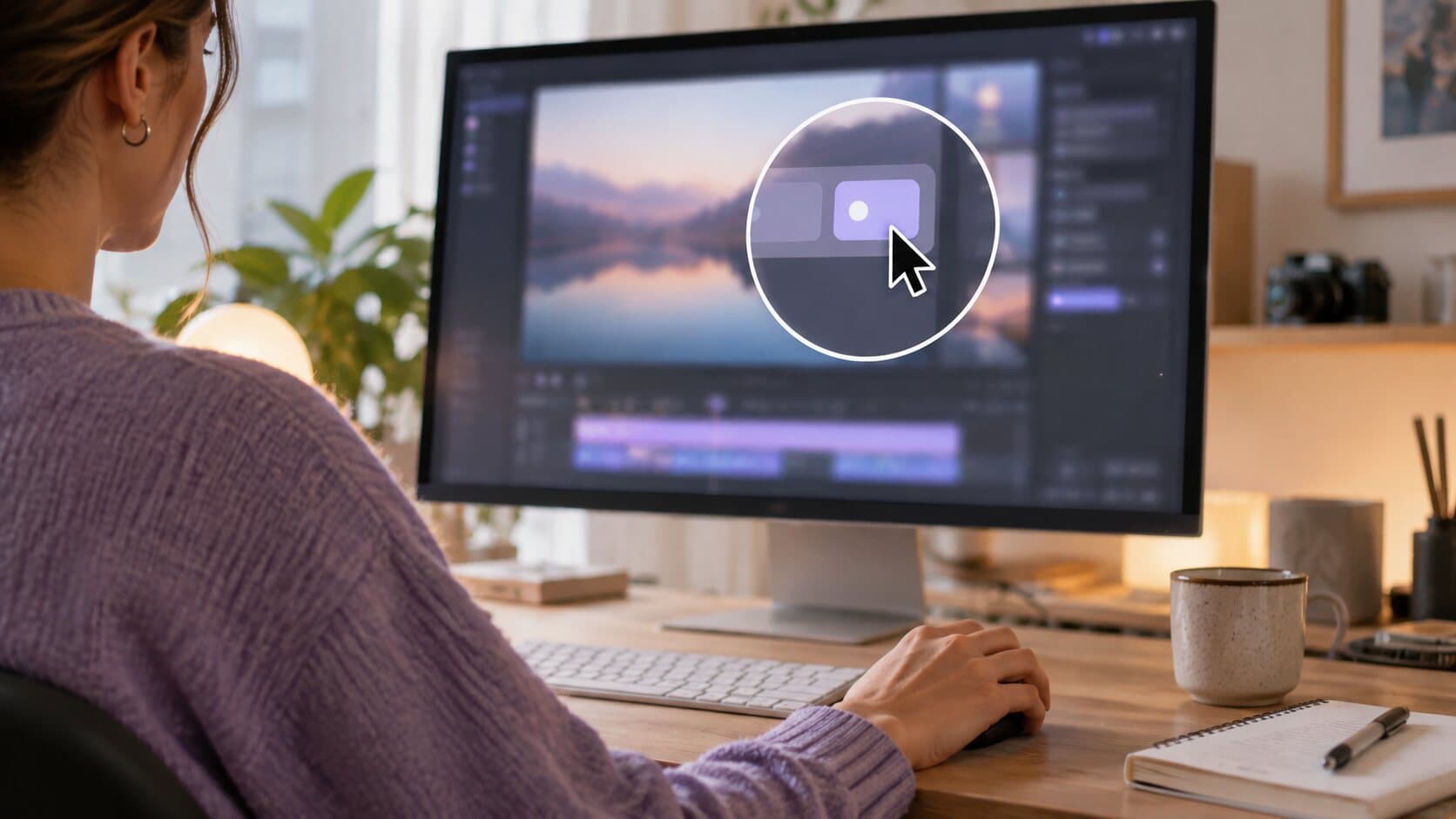
ReScreen records your interactions as events. While the screen is being captured, clicks, drags and scrolls are noted along with when and where they happened.
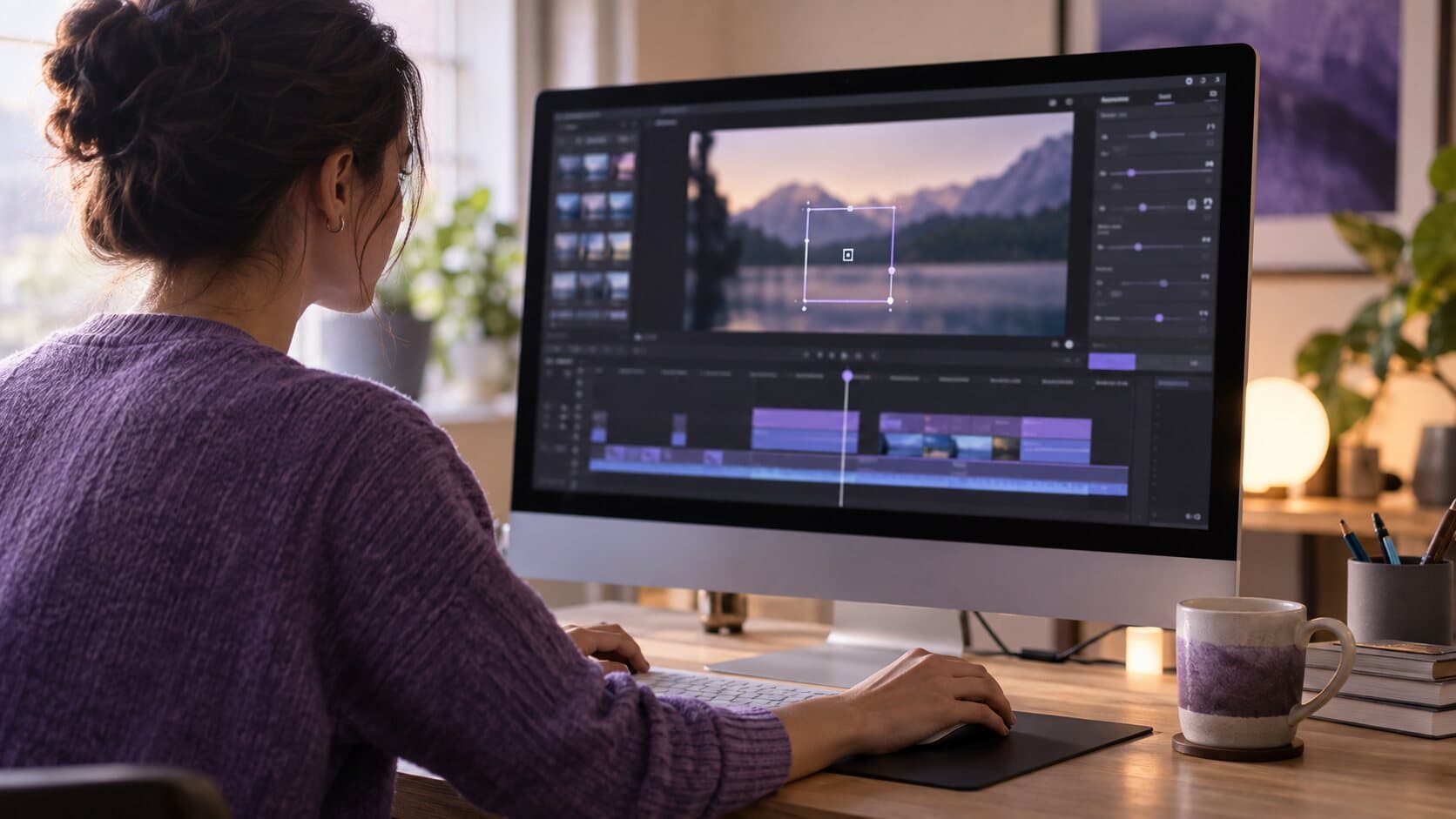
When you stop, the editor opens on the take and Smart Zoom has already turned those recorded events into zoom blocks on their own timeline track. Each block knows when to start, where to point and when to let go. With "Automatic zoom" on, the defaults are deliberately calm: a "Zoom amount" of 1.5×, a quarter of a second to zoom in, 1.25 seconds to "Stay zoomed", and 0.3 seconds to zoom out.
This needs the Input Monitoring permission, because macOS will not tell an app about clicks without it. Keyboard input is never recorded.
Grouped clicks, not twelve lurches
Fill in a form and you might click six fields in eight seconds. Six separate zooms would make the viewer seasick. "Combine nearby clicks" merges clicks that land close together in time into one held zoom, with a "Combine within" window you can set from 0.5 to 5 seconds (2 seconds by default).
Scrolls extend a zoom while you keep scrolling, and drags are followed, so dragging a card across a board keeps the card in frame rather than zooming on the spot where you picked it up.
It knows where your camera is
If you record with a webcam overlay, a zoom that lands underneath your face is useless. "Camera-aware framing" steers the focus away from the camera bubble, and framing is held inside the bounds of the capture, so a click in the corner of the screen never drags the view off the edge.
Can you change a zoom after recording?
Yes, and this is the part that matters most in practice. Automatic does not mean locked. Every block is an editable object, and none of it is baked into the capture. Select a zoom and you can change:
| Control | What it does |
|---|---|
| Start / End | When the zoom begins and lets go |
| "Magnification" | How far this one block zooms in |
| "Animation" | One of seven easings: Smooth, Gentle, Snappy, Spring, Ease In-Out, Linear, Instant |
| Focus mode | Auto, Cursor, Click, or Manual (click the preview to set the point) |
| "Delete Zoom" | Removes the block; the footage underneath is untouched |
You can also add a manual zoom anywhere on the timeline, such as on a chart figure you never clicked. If you change the global settings and press "Regenerate Automatic Zooms", the automatic blocks are rebuilt and your manual ones are kept. The full walkthrough of every Smart Zoom setting goes through timings and easings one by one.
Who gets the most out of automatic zoom?
- Founders and product marketers recording demos. A demo lives or dies on whether the viewer sees the moment of value. See the guide to product demo videos that convert.
- Course creators and educators publishing dozens of lessons. Keyframing one video is tedious; keyframing forty is a reason to give up on the course.
- Support agents answering "where is that setting?" A thirty-second clip that zooms into the right toggle answers the ticket without a second email.
In every case the pain is the same: the recording took five minutes and making it watchable took an hour. Building zooms from click events removes most of that hour.
What Smart Zoom will not do
It will not read your mind. It zooms to where you interacted, so if you talk about an area of the screen without clicking, dragging or scrolling there, add a manual zoom. It also does not add drawings, arrows or text callouts; ReScreen has no annotation tools.
Zoom works best alongside a readable pointer. A larger, smoothed cursor with a visible click effect is covered on the cursor and clicks page, and both are rendered from the same recorded events.
If you are weighing alternatives, the ReScreen vs Screen Studio comparison looks at the closest rival for this style of video, differences included.
Screen capture software that zooms: what to look for
Several Mac recorders now zoom for you, and they differ in ways that matter once you use one every week. Check these before you choose.
- Does the zoom come from real clicks? Click tracking is more accurate than motion guessing, which is why a click tracking zoom tool for a Mac lands the zoom on the button rather than near it, and why a dynamic zoom feels deliberate rather than twitchy.
- Are close clicks grouped? Without grouping, a five-field form becomes five lurches.
- Is every zoom editable? A zoom you cannot move or delete is a zoom you will eventually fight.
- Does it pan, or cut? Pan and zoom between clicks reads as one movement; cuts read as a glitch.
- Does it respect your camera bubble and the screen edges?
- Is the preview the export? A zoom that looks right in the editor and different in the file wastes a render.
ReScreen's answers are on the Smart Zoom page, and the product-by-product view is in the alternatives hub. If you want the settings themselves, Smart Zoom settings explained lists the recommended values.
Next step: record one take and look at the zoom track
Record two minutes of your own product, stop, and look at the Zoom track the editor has already built. Delete the blocks you disagree with, nudge the rest, export.
ReScreen runs on macOS 13 Ventura or later, on Apple Silicon and Intel, and everything happens locally on your Mac. Every feature, including Smart Zoom, is included in every plan with no watermark. See the plans on the pricing page, then download ReScreen for macOS and record the next one so people can actually see it.
Filed under