By Harpal Singh · · 6 min read
The comment arrives a day after you publish: "Where did you click at 1:42?" Then another. You watch the video back on your own monitor and everything looks fine, because you are watching at the size you recorded it. When viewers can't see what you click, the recording is not badly made. It is being watched on a screen a fraction of the size of yours, and nothing in it was built to survive that.
This costs more than pride. A support agent gets the ticket the video was supposed to prevent. A founder's demo can lose the prospect at the exact step that shows the value. A course creator hears from students who could not follow along. The work was done; the delivery failed.
Why can't viewers see what you click?
Three separate things go wrong at once, and it helps to tell them apart.
The interface shrinks
You record on a large, high-resolution display. Your viewer watches in a 1080p player embedded in a web page, or on a phone held in one hand. A 40-pixel button on a 4K display becomes a smudge a few millimetres wide. Text that was crisp for you drops below readable size for them.
The pointer disappears
The macOS pointer is designed to be found by the person moving it, not by someone watching a compressed video of it. Scaled down, it is a few grey pixels. Against a dark sidebar it vanishes entirely, and when it jitters on a trackpad it is harder still to track.
Clicks are silent
You know you clicked because the interface changed under your finger. The viewer sees a menu appear from nowhere. Without a visible marker, there is no moment of "that is what was pressed", and many people on social feeds watch without sound, so your narration cannot rescue it.
The fixes people usually try
- Lowering the display resolution. Interface elements get bigger, but so does everything else, your workspace becomes cramped, and the pointer and click problems remain.
- Recording a small window or region. A genuine improvement, and worth doing: a 1080p region shows more detail per pixel than a full 4K desktop. It stops helping once the app itself needs the space.
- Narrating every location. "Top right, the third icon along" is tiring to say and useless to anyone watching muted.
- Keyframing zooms in a video editor. It works, and it is why a five-minute video takes an evening. Every zoom is a hand-placed scale and position animation, and moving one cut means moving them all.
The last option is the right idea with the wrong cost. Zooming in on the action is what makes a recording readable. It just should not be manual.
How to make every click visible
ReScreen, a native screen recorder and editor for macOS, approaches this from the other end. While it records, it records your clicks, drags, scrolls and pointer movement as events. The capture stays clean, and the editor uses those events to rebuild readability afterwards. There are three layers.
Zoom to the action
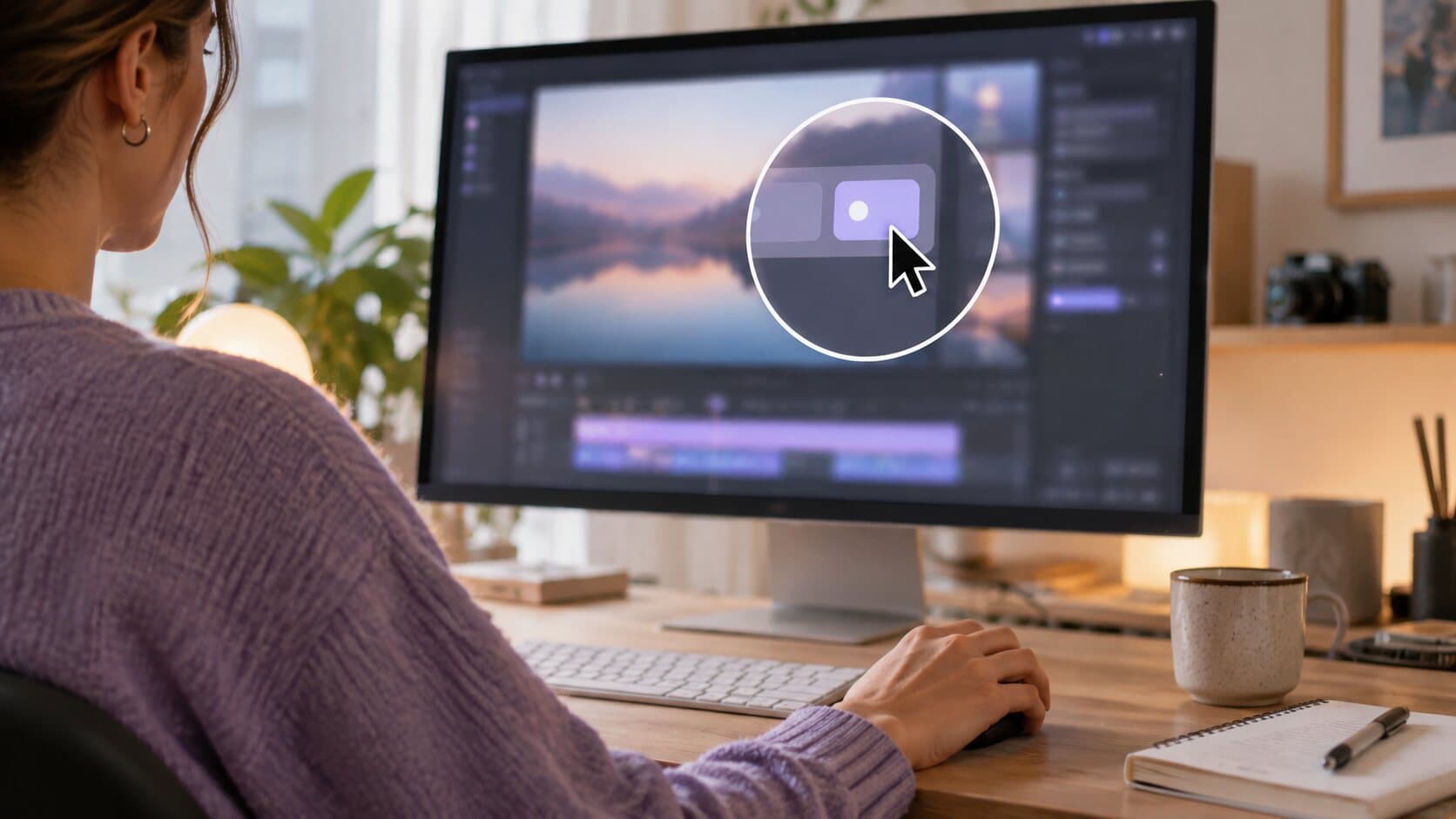
Smart Zoom turns each click into a zoom block on the timeline: the frame pushes in on what you pressed, holds long enough to read, and pulls back. Clicks close together become one held zoom that pans, rather than a series of lurches, and scrolls and drags keep the zoom alive while they last. The full mechanism is in our article on the auto zoom screen recorder for Mac.
The default zoom amount is 1.5×, adjustable from 1.1× to 4×. For small targets or phone viewing, go higher. Every block can be moved, retimed or deleted, and you can add manual zooms for things you never clicked, such as an error message. Each control is covered in Smart Zoom settings explained, and the overview is on the Smart Zoom feature page.
Make the pointer followable
"Cursor size" goes from 50 to 300%, with a default of 120%. "Smoothing" has four levels, Raw, Natural, Smooth and Very Smooth, which remove trackpad jitter without moving your clicks. "Cursor shadow" keeps the pointer visible over dark themes, and "Hide when inactive" fades it out after a delay so it is not parked on the text your viewer is reading.
Show the click itself
The "Click effect" picker offers None, Subtle, Ring and Pulse, in a "Click color" of your choice. Now a muted viewer sees exactly when something was pressed. Recommended values for each kind of video are in the cursor smoothing and click effects guide, and the cursor and clicks page summarises the feature.
A five-minute workflow for a readable recording
- In Settings, under Recording, allow Input Monitoring. Without it macOS does not report clicks, and there is nothing to build zooms or click effects from.
- Record a window, an application or a drawn region rather than the whole display when you can.
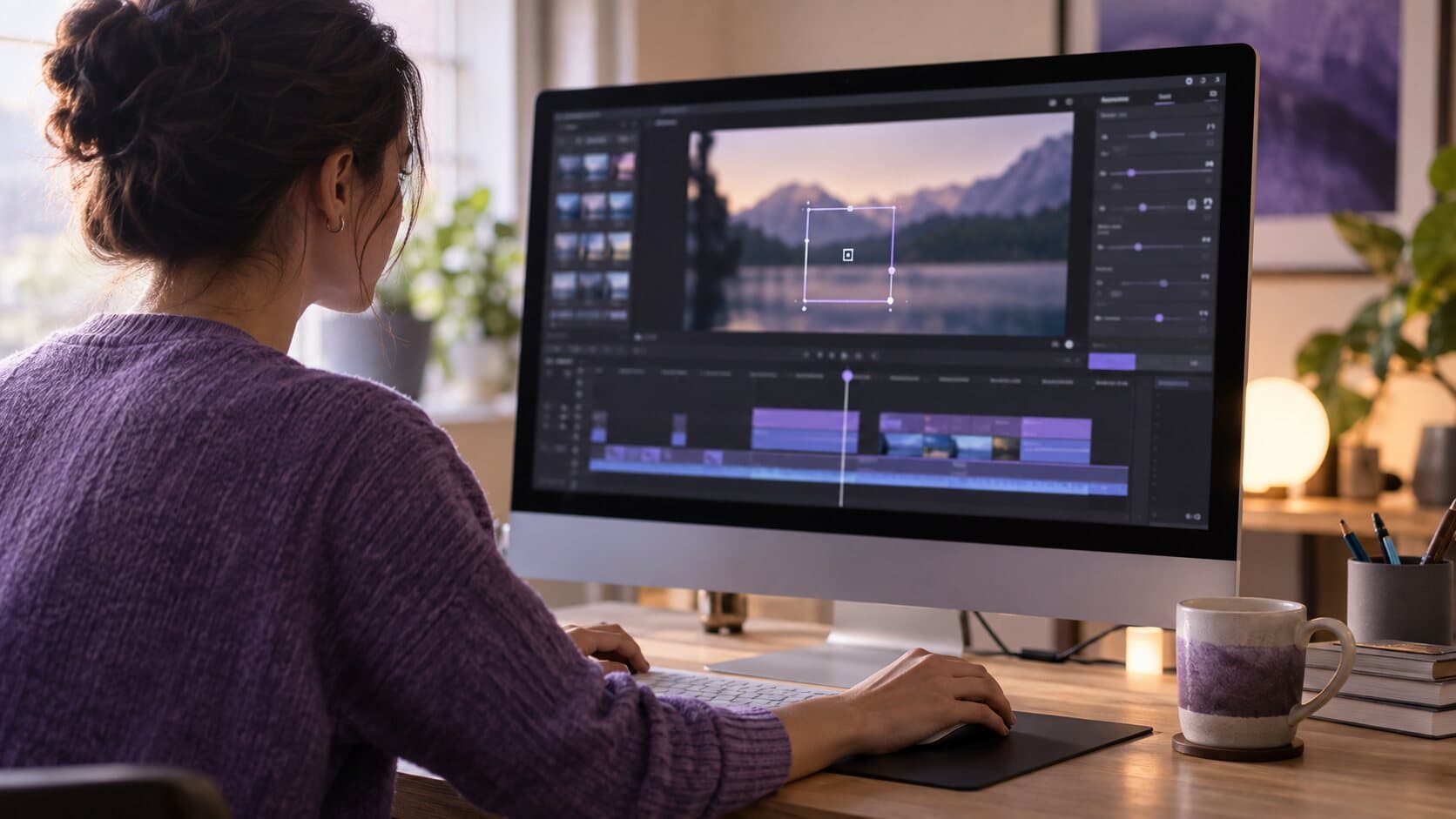
- Stop the recording. The editor opens with zoom blocks already on the Zoom track.
- Play it through once. Delete any zoom you do not want, and if the frame pulls away while you are still talking, lengthen "Stay zoomed" and press "Regenerate Automatic Zooms".
- Open the Cursor tab, raise "Cursor size" and pick a click effect.
- Check the preview at the size of a phone screen, then export.
Because preview and export use the same compositor, what you checked is what ships.
Who feels this most
- Developers: code at 13 points is unreadable in a pull-request demo. A zoom on the changed lines and a larger pointer do more than any amount of narration. There is a fuller playbook in screen recording for developers.
- Marketers: vertical video makes the problem worse, because a landscape screen is cropped to a narrow column. ReScreen's vertical presets keep the whole screen in view over a blurred backdrop, and "Fill canvas" crops to the 9:16 frame and follows the interaction so the click stays in frame.
- Support agents and educators: the viewer is trying to repeat your steps. If they cannot see the click, they cannot do the step.
What this does not do
ReScreen has no drawing, arrows, text callouts or keystroke display. The approach is to make the real interface legible rather than to annotate over it. If a video needs on-screen labels, you would add those in another tool after export.
If the problem is the whole video, not only the pointer
A pointer fix helps, but a viewer who cannot follow usually has several problems at once: the screen is too small, the pace is too fast and the click is not marked. How to make a screencast walks through the whole workflow, from the screen setup to the edit, and cursor highlight and click effects covers the settings that make a click visible at any size. If you are recording a demo for a website, SaaS demo best practices lists the rules that keep a viewer with you.
Next step: test it on a recording that matters
Pick the video that generated the most "where did you click?" replies and record it again with click events captured. The difference is visible in the first zoom. ReScreen runs on macOS 13 Ventura or later, on Apple Silicon and Intel, and everything stays on your Mac. Download ReScreen for macOS to get started.
Filed under