Something to send immediately
The remuxed MP4 costs no second encode, follows the project through Duplicate and Move to Trash, and Projects → Show MP4 in Finder reveals it.
Export
Up to 4K at 30 or 60 FPS, MP4 or MOV, H.264 or HEVC — plus a playable MP4 written the moment you stop.
The problem
You stop recording and what you have is not a file yet. It is a project, in a format nothing opens, waiting on an export you will run twice because the first one had the wrong aspect ratio.
What happens instead
A ready-to-play .mp4 appears beside the project as soon as the take finishes — the captured video copied without re-encoding, with microphone and system audio mixed into one track. When you want the styled version, Export renders the canvas, Smart Zoom, camera and cursor.
In detail
The remuxed MP4 costs no second encode, follows the project through Duplicate and Move to Trash, and Projects → Show MP4 in Finder reveals it.
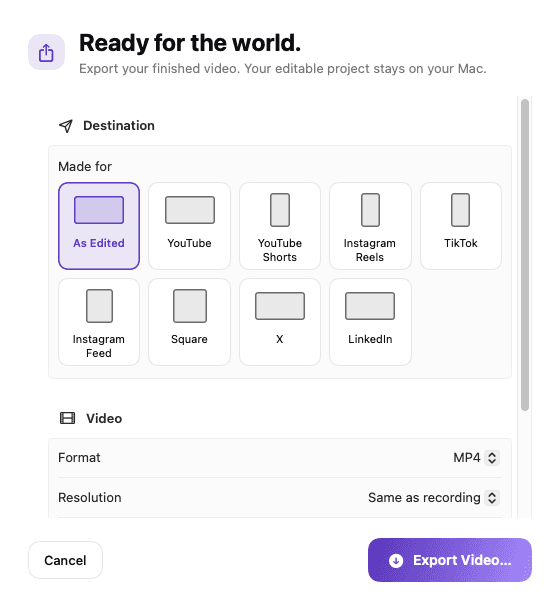
Destination tiles for YouTube, Shorts, Reels, TikTok, the Instagram feed in 4:5, Square, X and LinkedIn reframe the canvas without re-cutting the edit. Tall destinations show the whole screen over a blurred backdrop, or fill the frame and follow the interaction if you choose; your resolution, frame rate and quality are never lowered.
H.264 where compatibility matters, HEVC where file size does, in an MP4 or a MOV container.
Export writes a temporary file and publishes the finished one only after it has succeeded, so a failed render never replaces a good file.
In the app
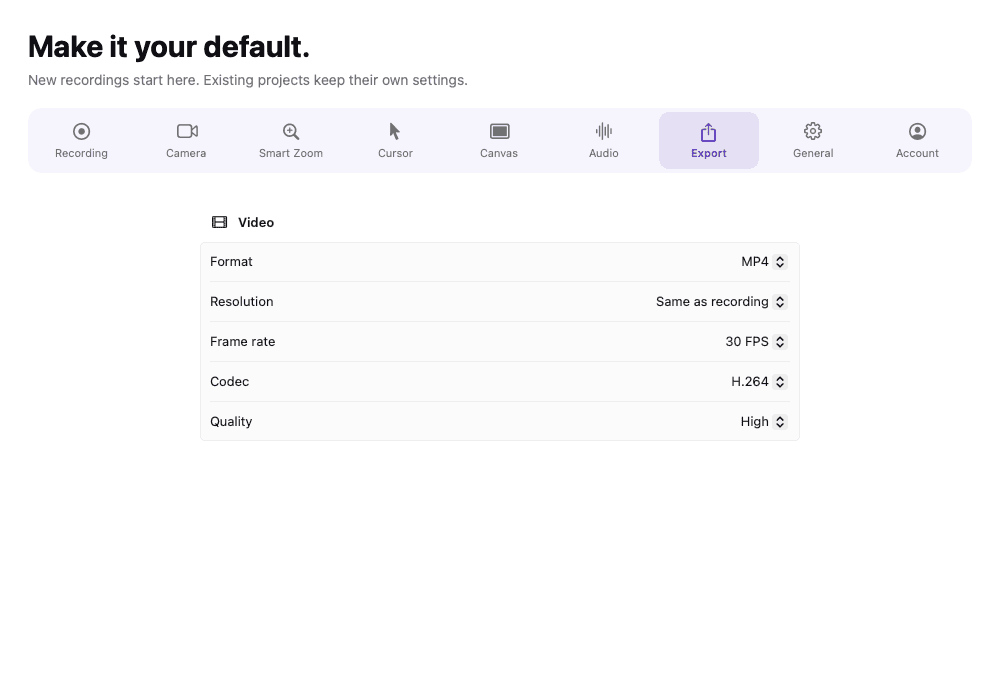
Captured from the application itself, at the size it actually draws.
Specifications
Choose MP4 or MOV, H.264 or HEVC, a resolution up to 4K and 30 or 60 FPS (often written 60fps), and press ⌘E. Export writes a temporary file and publishes the finished one only on success, so a failed render never replaces a good file. The editor's preview is drawn by the same compositor as the export, which is why a 60 FPS export looks like what you scrubbed.
For people who need to know what 4K and 60 FPS really mean for a screen recording, 4K 60 FPS screen recording on a Mac, explained covers resolution, codecs, file size and when 60 FPS is worth it.
Quality is decided by three things: the resolution the display really has, the frame rate you record at and the codec you export with. A Retina display recorded at its real resolution and exported at 4K is as sharp as the screen was. HEVC makes smaller files at the same quality, H.264 plays on everything. If a long recording is the concern, an HD export is usually enough, and 4K is for detail a viewer will zoom into.
You do not have to wait for an export to share a take. A ready-to-play MP4 is written beside the project the moment you stop, copied without re-encoding. Use it when you need speed and use Export when you want the styled version with canvas, zooms, camera and cursor. Instant MP4 screen recording explains the difference and when each one is right.
Destination tiles for YouTube, Shorts, Reels, TikTok, the Instagram feed, Square, X and LinkedIn reframe the canvas and choose a compatible codec in one step. Tall destinations fill the frame and follow the interaction. For the social side of that, vertical video and screen recordings for social media marketing go into more detail.
The highest quality screen recorder setting is simply the display's real resolution, exported at the largest size it supports, at 60 FPS for motion. To improve screen recording quality beyond that, fix the things that are not pixels: sound, cursor visibility and framing. Our articles on 4K and 60 FPS screen recording and on fixing bad audio cover both.
FAQ
The captured video copied without re-encoding, with microphone and system audio mixed into one track, so you can play or share a take straight away. Canvas, Smart Zoom, camera and cursor styling are rendered by Export instead, which also writes the constant frame rate that video editors expect.
Yes. Skip it from the progress panel when you only want the edited version, and create one later for an older recording from Projects → Save Ready-to-Play MP4.
Yes. Choose a resolution up to 4K and a frame rate of 30 or 60 FPS in the export settings, in an MP4 or MOV container with H.264 or HEVC. The export is limited by the resolution the display really has, because nothing is upscaled to reach a number.
MP4 with H.264 plays almost everywhere and is the safe choice for sharing. MOV is the container Apple's tools produce and works well in editing apps. Both can hold H.264 or HEVC, and HEVC gives the smaller file.
Keep reading
A 9:16, 4:5 or 1:1 canvas that shows the whole screen over a blurred backdrop, or fills with your recording and follows what you are doing, so the action stays inside a frame the shape of a phone.
Read morePadding, rounded corners, a shadow and a background that belongs to your brand — set once, rendered at export.
Read moreSplitting, trimming, ripple deletes and per-section speed, without exporting into another application first.
Read moreFrom the blog

Video Marketing
A promo video for software is a short, specific showing of the product doing something worth wanting. Here is the format, the script, the recording and the edit.
5 min read
Comparisons
There are two kinds of video: footage you assemble and a screen you recorded. They need different editors. Here is how to choose for a Mac, and what to skip.
6 min read
Product Features
Blurry text and choppy scrolling come from the wrong settings, not the wrong Mac. Here is what resolution, frame rate, codec and quality actually do.
6 min read
Product Features
Screen recordings are the most sensitive video you make. Here is what a recorder that never uploads your footage looks like, and who needs one.
6 min read
Use Cases
Most status meetings are one person talking over a shared screen. Record it once instead. A practical workflow for async updates, SOPs and training.
6 min read
Video Marketing
Most software company channels are a webinar graveyard. Here is a practical way to build a tutorial channel people search for, watch and come back to.
6 min read
Use Cases
A five-minute screen recording should not cost an afternoon. Here is where the editing time really goes, and a record-to-export workflow that removes it.
6 min read
Video Marketing
You do not need an agency or motion graphics to launch. A clear 60-second structure and a well-framed screen recording will carry a SaaS launch video.
6 min read
Product Features
Most recorders hand you a project, not a file. ReScreen writes a playable MP4 the moment a take stops, with no second encode.
6 min readInstall it, hit ⌥⌘R, and watch a take that would normally cost you an evening in a timeline come out finished.
macOS 13 Ventura or later · Apple Silicon and Intel