Retina, not upscaled
Capture runs at the display’s real resolution. Nothing is stretched to manufacture a 4K number that was never there.
Screen recording
A display, a single window, one application, or a region you draw — at the pixel density the screen actually has.
The problem
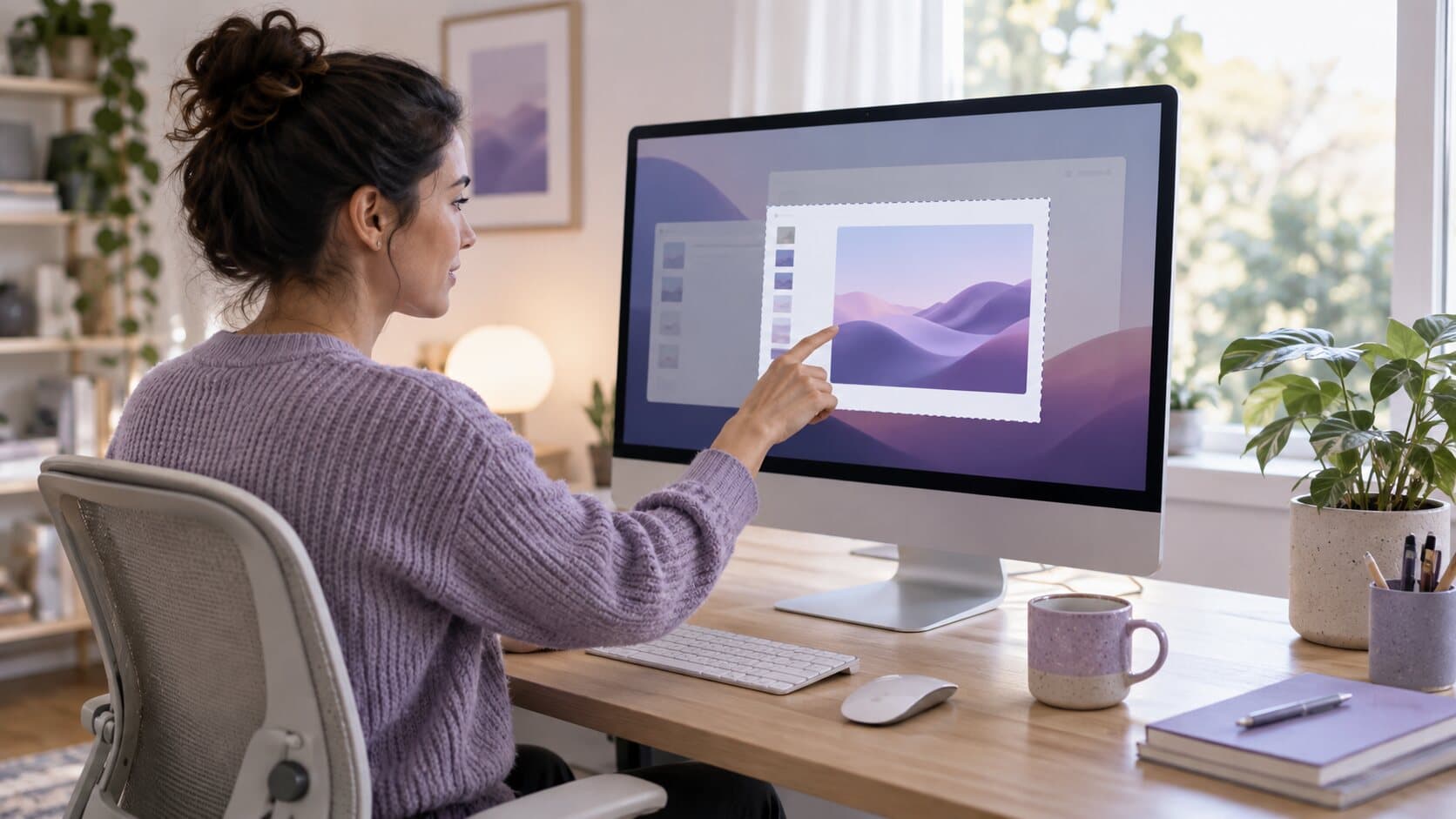
The recorder you already have gives you a whole screen with your notifications in it, or a region you cannot resize once the countdown has started. Then something stalls, and forty minutes of work opens as a file nothing will play.
What happens instead
Choose a display, window, application or a region you can redraw, resize and type exact dimensions into. The take is saved continuously while you record, so an interrupted take is still a recording.
In detail
Capture runs at the display’s real resolution. Nothing is stretched to manufacture a 4K number that was never there.
Recorder windows are excluded by the capture filter, and desktop icons can be hidden before the countdown begins.
Pause and resume from the floating toolbar, the menu bar or ⌥⌘P. The pause is cut cleanly out of the take.
The recording is saved as it happens and free disk space is checked before and during the take, so a crash or a power cut does not cost you the work.
In the app
Captured from the application itself, at the size it actually draws.
Specifications
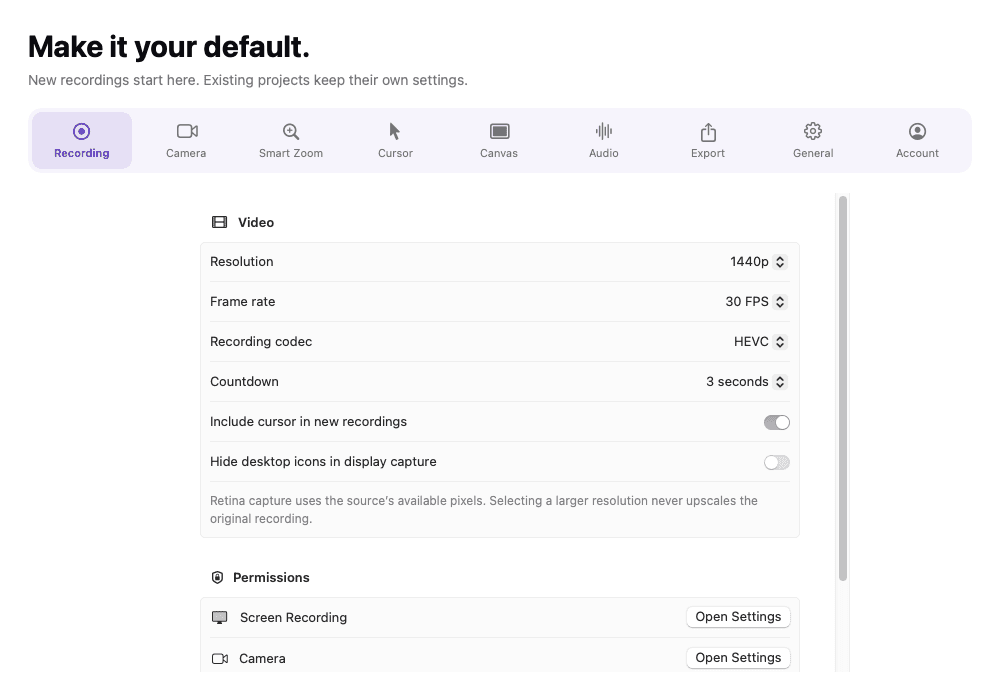
Choose what to capture, press ⌥⌘R, and talk. When you press it again, the take opens in the editor and a playable MP4 is already waiting beside the project. That is the whole loop: there is no export step between recording and having a file, which is what most people mean when they ask how to record a computer screen on a Mac and get a video they can send.
ReScreen is computer screen recording software for Mac, also called video screen capture software or screen video recording software: it records the whole desktop, one monitor, one window, one application or a region you draw, and desktop screen capture is a single choice in the source picker. It is capture video software for Mac with an editor attached. Resolution and frame rate are set before you start, 30 or 60 FPS, and the countdown, pause and resume work from the floating toolbar, the menu bar or the shortcut. If you have never recorded a Mac screen before, how to screen record on a Mac walks through the built-in tools first and explains where ReScreen goes further.
A display records everything on one monitor. A window records only that window, wherever you drag it. An application records every window the app owns, which is how you demo one product without a second monitor full of other apps. And a region is a rectangle you draw, resize and can type exact dimensions into, with presets for common sizes.
That covers every way people describe capturing part of a screen on a Mac: capturing a window, a portion of the screen, the whole screen, one monitor of several, or just the part you drew. Moving between them is a single choice in the source picker, which is the native macOS picker where the system provides one.
ReScreen records video. It is not a screenshot tool: it does not take still images, copy a region to the clipboard or annotate. If what you need is a screenshot, a screen shot capture or a screen snapshot on a Mac, the shortcuts built into macOS do that well, and how to take a screenshot on a Mac lists every one of them, including where the file goes. If most of your captures are stills, ReScreen vs CleanShot X explains which of the two tools fits.
macOS already records the screen: Shift-Command-5, or QuickTime Player's New Screen Recording. Both are fine for a quick clip. They offer a microphone, a timer and a save location; they do not zoom on clicks, style the cursor, keep your camera, voice and system sound as separate tracks, or open in an editor. ReScreen vs QuickTime Player compares them line by line and says when the built-in tool is the better choice.
ReScreen needs macOS 13 Ventura or later and runs natively on Apple Silicon and Intel. It does not support the older Mac OS X releases (often written OSX), and there is no Windows or PC version: it is a Mac application, built on the screen capture frameworks macOS provides. The download page lists requirements and the permissions the app asks for, and the best screen recorder for Mac covers which recorder to choose when you need something it does not do.
A few habits make recordings on a laptop better. Plug in, because a long recording on battery is a risk. Close what you do not need. Check the meter before you speak. And choose the source deliberately: a window or a region records less clutter than a display.
Those are the easiest screen recording software habits, whichever app you use. For a screen capture program, the Terminal also has a built-in screencapture command, which takes stills and short clips from the command line; how to take a screenshot on a Mac lists its options. If you need help with permissions or a recording that will not start, how to screen record on a Mac covers the common causes, and the features guide lists everything the recorder can do.
FAQ
Yes. Sources include a single application as well as a display, a window or a region you draw, so a second monitor full of Slack never appears in the take.
It gives you the pixels the display actually has. Capture runs at the screen’s real resolution and nothing is stretched to reach a number it never had; the finished size, up to 4K, is decided at export.
Open ReScreen, choose a display, a window, an application or a region you draw, and press ⌥⌘R. Press it again to stop and the take opens in the editor, with a playable MP4 already beside the project. macOS also has Shift-Command-5 and QuickTime Player built in for quick clips.
Yes. Choose Window for a single window, Application for every window an app owns, or Region to draw a rectangle you can resize and type exact dimensions into. A display records one whole monitor.
No. It records video and does not capture still images. For a screenshot on a Mac use Shift-Command-3, 4 or 5, which macOS provides, and read the guide to taking a screenshot on a Mac for every shortcut and where the file goes.
No. ReScreen is a macOS application that needs macOS 13 Ventura or later, on Apple Silicon or Intel. There is no Windows, Linux, iPad or iPhone version, and OS X releases older than macOS 13 are not supported.
Keep reading
Camera, microphone and system audio are captured as independent tracks, so fixing one never damages another.
Read moreThe recording reaches the disk while you are still talking, so an interrupted session is offered back to you instead of becoming a file nothing can open.
Read moreReScreen watches where you click, drag and scroll, then pans and zooms the way an editor would — while you are still recording.
Read moreFrom the blog
Comparisons
OBS Studio is built for streaming, and most people who install it want to record a screen. Here are the apps like OBS that suit that job on a Mac, and when to stay.
5 min read
Comparisons
A Mac can record its screen for nothing, and so can OBS Studio. Here is what each free option does, where it stops, and when paying for a recorder is worth it.
6 min read
How-To Guides
A screencast is a recording of your screen with a voice explaining it. Here is the workflow that makes one watchable, including coding screencasts and the edit.
4 min read
How-To Guides
You can record a Zoom call with Zoom itself or with a screen recorder. Here is how each works, how to capture both sides of the sound, and the consent question.
5 min read
How-To Guides
Yes, you can screen record on a Mac without installing anything. Here are the two built-in routes, where the file goes, how to stop, and where they run out.
7 min read
How-To Guides
Shift-Command-3, 4 and 5 cover almost everything. Here is what each does, how to copy to the clipboard, where the file goes and when you want a recording instead.
6 min read
Use Cases
Good release notes say what changed for the user, in order of how much it matters. Here is a template, a sample set of app release notes and when a recording helps.
4 min read
Video Marketing
A step-by-step method for recording a software demo people can follow: prepare the machine, capture the right window, get the microphone right, then trim and export.
14 min read
Product Features
Blurry text and choppy scrolling come from the wrong settings, not the wrong Mac. Here is what resolution, frame rate, codec and quality actually do.
6 min readInstall it, hit ⌥⌘R, and watch a take that would normally cost you an evening in a timeline come out finished.
macOS 13 Ventura or later · Apple Silicon and Intel