By Harpal Singh · · 6 min read
The recording went well. Four clean minutes, a clear explanation, and eleven seconds in the middle where you hunted for the right browser tab and said "um, hang on". Removing those eleven seconds should take about as long as they did. Instead you open a video editor, wait for an import, find the spot again, cut it, close the gap and re-encode the whole file. A screen recorder with a built-in editor exists to make that detour disappear.
Why does a small fix cost so much time?
The cut is never the expensive part. The overhead around it is:
- Two applications. One to record, one to edit, each with its own project format and shortcuts.
- An import step. The editor has to ingest, and sometimes transcode, a file you made thirty seconds ago.
- A second encode. The recorder already compressed the footage once. The editor compresses it again, which costs time and a little quality.
- Lost information. By the time the footage reaches a general-purpose editor it is flat pixels. The editor does not know where you clicked, so every zoom is keyframed by hand.
That last point is the quiet one. A screen recording carries more than pictures: click positions, cursor paths, separate audio sources. Flatten it into one file and you throw away what would have made editing quick.
What "built-in" means in ReScreen
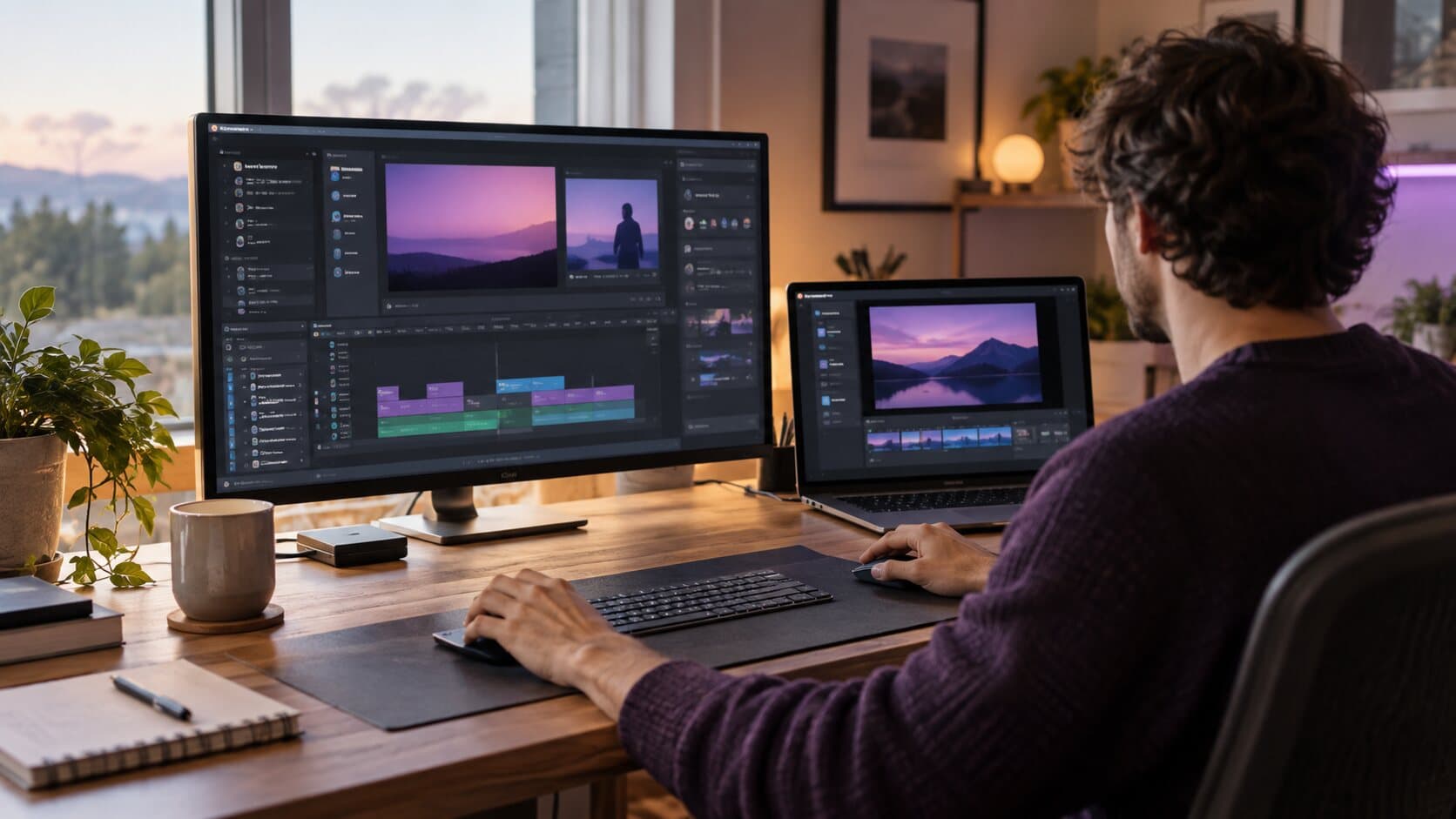
ReScreen is a native macOS screen recorder and editor in one app. Stop a take and the editor opens on it immediately. There is nothing to import, because the timeline reads the project the recorder just wrote.
The timeline shows six tracks: Screen, Zoom, Camera, Cursor, Mic and System. They are separate because they were captured separately, which is what makes the rest possible.
The cutting tools, and what each one is for
| Tool | What it does | When you reach for it |
|---|---|---|
| Split (⌘B) | Cuts the timeline at the playhead | Isolating a section to speed up or remove |
| Set In / Set Out | Marks a range | Before keeping or removing a stretch |
| "Keep Range" | Trims away everything outside the range | Dropping the fumbling start and the trailing silence in one move |
| "Remove Range" | Ripple delete: removes the range and closes the gap | Cutting the eleven seconds in the middle |
| Speed | 0.5×–4× per section, audio pitch-corrected | Rushing through an install, slowing down a tricky step |
The ripple delete deserves a second look. In many editors, deleting a range leaves a hole, and you drag everything after it to the left, hoping nothing slips out of sync. "Remove Range" pulls the rest of the timeline along with the cut. The gap never exists.
Speed per section, without the chipmunk voice
Every tutorial has a stretch where nothing happens: a progress bar, a file copy. Split around it and run it at 4×. The three-second gesture everybody misses can play at 0.5×.
Because the audio is pitch-corrected, a narrated section at 1.5× still sounds like you. For people producing software tutorial videos that customers actually finish, tightening dead time is one of the simplest ways to respect a viewer's patience.
What the editor knows that a general editor does not
Since the recorder and editor share a project, the editor keeps everything the recorder learned:
- Clicks become zoom blocks. Smart Zoom builds zooms from recorded clicks, drags and scrolls, and places them on the Zoom track as blocks you can move, retime or delete. The article on how an auto zoom screen recorder builds zooms from clicks explains the mechanics.
- The cursor is drawn, not baked in. Size, smoothing and click effects are rendered from the recorded events, so they stay adjustable after the take.
- Audio is still separate. Microphone and system audio each have their own volume (0–200 %), mute and fades of up to five seconds, so you can lower the app's sound without touching your voice.
- The camera is its own track. Shape, size and position are edits, not decisions made before you pressed record.
None of this survives a trip through an exported file. It is the practical argument for the timeline editor living inside the recorder rather than beside it.
Mistakes are cheap: undo, autosave and an honest preview
Editing feels slow when every change is a risk. Three details remove most of it.
- One undo stack, 100 steps deep. Cuts, zoom changes and styling share the same history, so ⌘Z and ⇧⌘Z walk back through everything in order.
- Autosave with a backup. Changes are written into the project as you work, and the previous valid checkpoint is kept beside the current one.
- Preview equals output. One compositor drives both the player and the export. You do not export twice to check a crop.
Who benefits most from editing where you record?
- Founders and marketers who cannot justify learning a professional editing suite for a ninety-second demo.
- Support teams who need to cut a false start out of an answer video and send it today.
- Course creators, for whom an import-and-export loop multiplies across an entire curriculum.
- Developers who want a tidy PR walkthrough without a creative tool in the way.
If you are weighing this approach against a full production suite, the honest comparison of ReScreen vs Camtasia covers where a heavyweight editor still earns its place.
What the built-in editor does not do
It is a screen recording editor, not a film studio. There are no titles or transitions, no text or drawing overlays, no music library, no captions, and you cannot import other clips into a project. If a video needs those, export from ReScreen and add them in another tool, or use the platform's own features, such as YouTube's captions.
And if you need no edit at all?
Then skip the editor. ReScreen also writes a ready-to-play MP4 the moment you stop, copied from the capture without a second encode. Send that now, and come back to the same project later if the take deserves polish.
The Mac's built-in screen recorder, and a recorder with a trim and split editor
The built-in recorder is free and already there. It records the screen with a microphone and saves a .mov, and QuickTime Player can trim and split it afterwards, so it is a reasonable answer when you want a quick recording and a quick cut. How to screen record on a Mac covers it, and the question of whether it can include sound is in how to screen record on a Mac with audio.
A Mac screen recorder with built-in editor, trim and split goes further in the same app: you record, the take opens on a timeline and the cuts you make are applied at export. Because the instant MP4 beside the project is copied without re-encoding, it is a no-reencode screen recorder for Mac in the sense that nothing about the capture is degraded before you decide what to cut, and the edit, when you make one, is rendered once at export. To record and trim a screen on a Mac in one app, see the timeline editor.
Next step: time your own workflow
Count the minutes between stopping your last take and having a finished file. If most went on importing, keyframing and re-exporting, the fix is structural. The workflow for editing screen recordings faster breaks that down stage by stage.
ReScreen needs macOS 13 Ventura or later and runs on Apple Silicon and Intel. Every plan includes the full editor, with no watermark and no time limits; see the monthly, yearly and lifetime options on the pricing page, or download ReScreen for macOS and cut your next take where you recorded it.
Filed under