Four looks, one click each
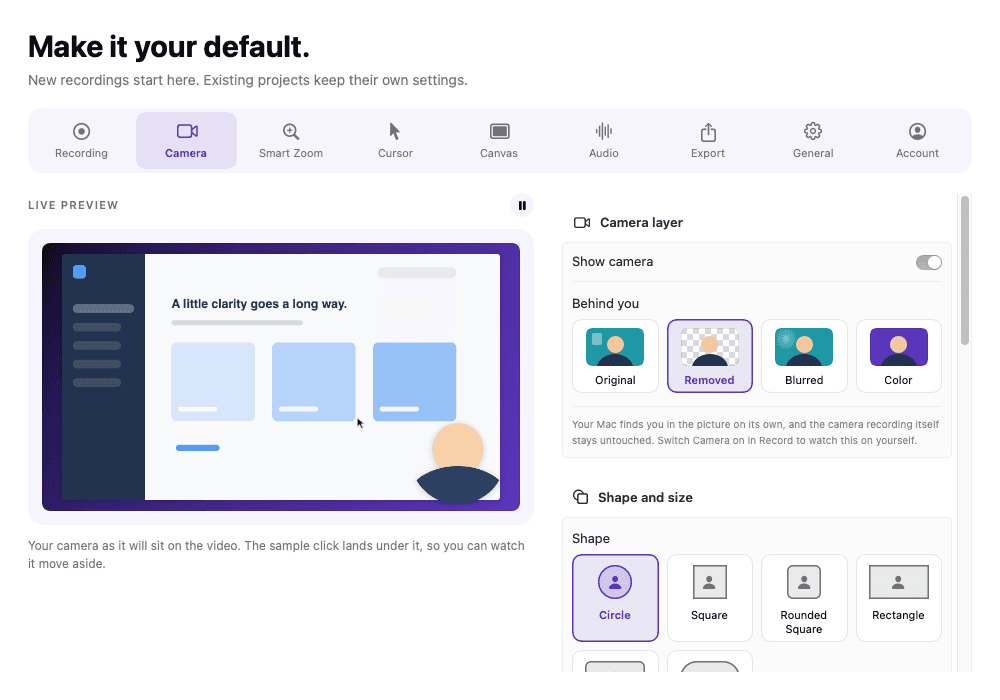
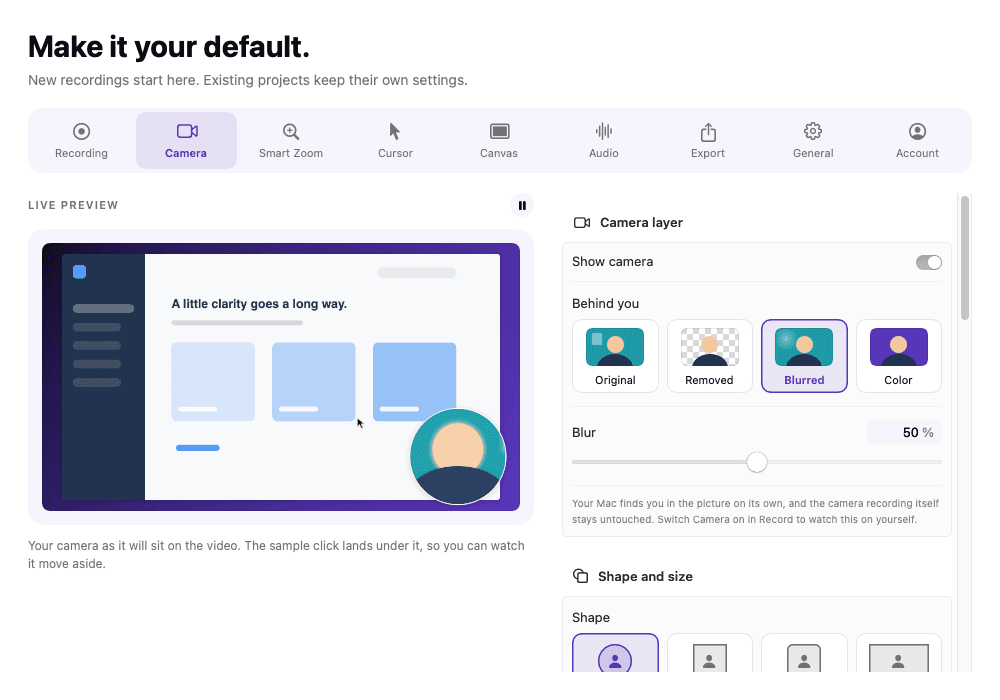
Original keeps the room. Removed cuts you out so the recording shows around you. Blurred puts the room out of focus by as much as you like. Color stands you in front of any colour you pick.
Camera background
Remove, blur or recolour what is behind you on camera — chosen after you record, with no green screen and nothing uploaded.

The problem
The demo is ready and the room is not. There is laundry on the chair, a window blowing out the exposure, and the only tools that fix it want a green screen, a virtual camera driver, or your face uploaded to somebody else’s server.
What happens instead
ReScreen finds you in the camera picture on your Mac and treats everything else as a choice: keep the room, remove it so you sit directly on the recording, blur it, or put a colour behind you. It is an edit, not a filter baked into the file — the camera recording is never altered, so you can change your mind on any project at any time.
In detail
Original keeps the room. Removed cuts you out so the recording shows around you. Blurred puts the room out of focus by as much as you like. Color stands you in front of any colour you pick.
The Record screen shows your own camera with the look applied, laid out on a miniature of the finished video — the same size, corner, shape, border and shadow the export will have.
The camera is recorded untouched as its own track. The background is drawn when the project plays and exports, so every look stays switchable, per project, for as long as you keep the recording.
With the background removed there is no frame left to outline, so the border steps aside and the shadow falls from your own outline instead of from a box that is no longer there.
In the app
Captured from the application itself, at the size it actually draws.
Specifications
There are four looks for what stands behind you, and you pick one after you have recorded, not before. Original keeps the room. Removed cuts you out so the recording shows around you. Blurred puts the room out of focus by an amount you set. Color puts you in front of any colour you choose. Because the camera is stored untouched, changing your mind later costs nothing.
That is what people mean when they search for a Mac screen recorder that can remove the webcam background, or one that can blur it: the same capability, with no green screen and no virtual camera driver, and with the picture processed on your Mac rather than sent anywhere.
Blur is the quietest option. It keeps the sense of a real space behind you and hides the detail. If the room is the problem rather than the idea of a room, use Removed, which puts you directly over the recording, or Color, which sets you against a flat brand colour. The Camera settings screen shows each look as a picture tile, drawn the way it will appear in the export.
Switch the camera on before you record and the Record screen shows your own picture with the look applied, on a miniature of the finished video, so you can see the effect on yourself before the take. For the camera's shape, size and position, the webcam overlay shapes guide gives recommended values for tutorials and demos, and camera and audio lists the cameras and microphones the app can use.
Separation uses the person segmentation built into macOS and runs on your Mac while the project plays and exports. The camera recording is never uploaded or altered, which is the same rule the rest of the app follows. Private, offline screen recording on a Mac explains why that rule matters for people who record client work.
FAQ
No. ReScreen uses the person segmentation built into macOS to tell you apart from the room, so an ordinary desk, wall or bookshelf behind you is enough. Even lighting on your face still gives the cleanest edge, as it does for any camera.
No. The separation happens on your Mac, frame by frame, while the project plays and exports. Your camera recording never leaves the machine, which is the same rule the rest of the app follows.
Yes. The camera is kept as its own untouched track, and the background is applied when the project is drawn. Open any project, pick a different look in the Camera inspector, and the preview and the next export both follow.
Yes. Choose the Blurred look in the camera settings and set how strong the blur is. The room stays visible but out of focus, and because the camera is stored untouched you can switch to Removed or Color on the same project later.
Keep reading
Camera, microphone and system audio are captured as independent tracks, so fixing one never damages another.
Read morePadding, rounded corners, a shadow and a background that belongs to your brand — set once, rendered at export.
Read moreRecording, editing and export all happen locally. There is no upload step, because there is nowhere to upload to.
Read moreFrom the blog

How-To Guides
A Mac can record you with its own camera in a few clicks. Here are the built-in options, how to get a good picture, and how to record yourself and your screen together.
5 min read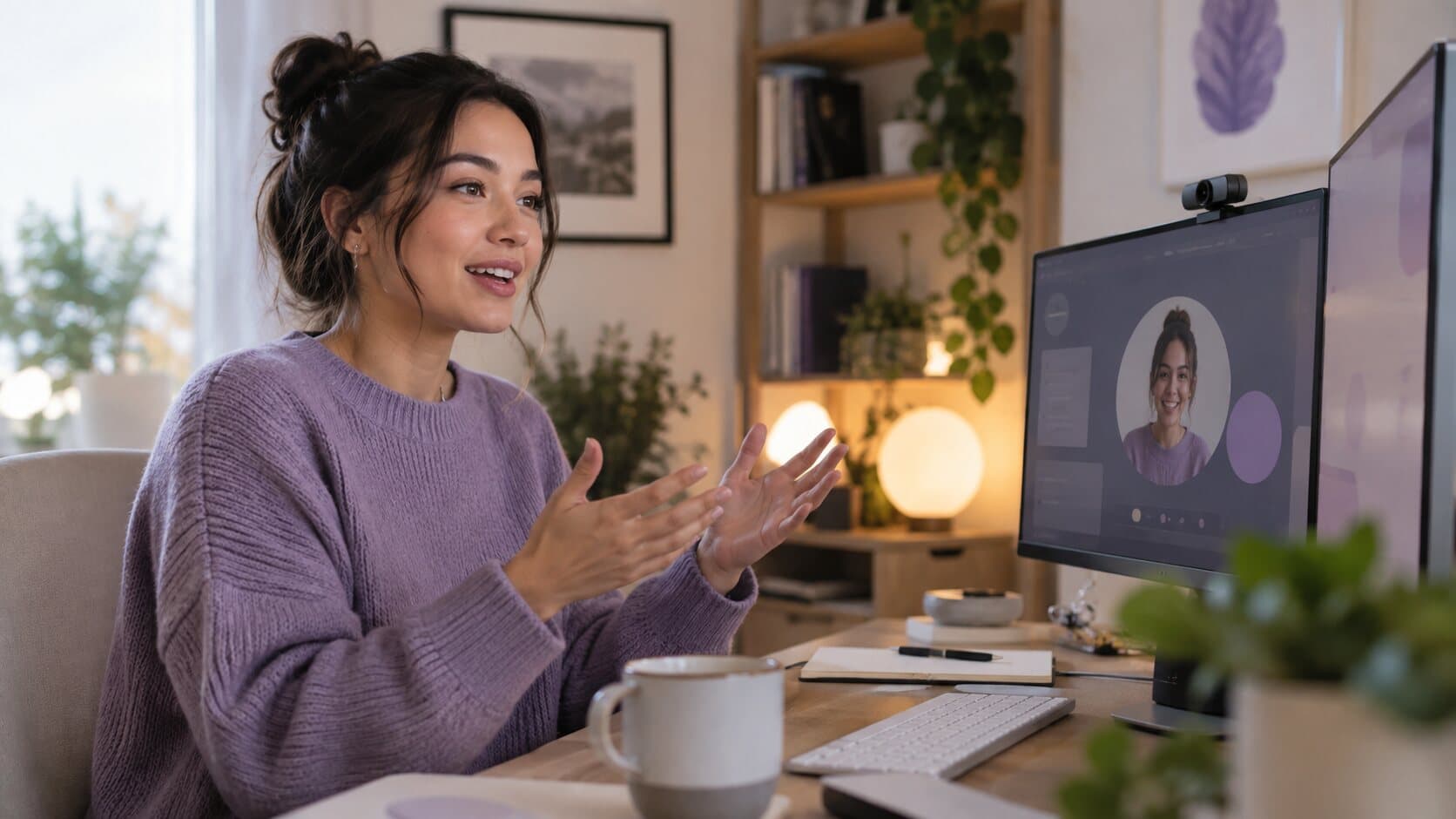
Feature Guides
Circle or pill? 15% or 30%? A setting-by-setting guide to ReScreen's camera overlay, with values for tutorials, demos, social clips and courses.
6 min readInstall it, hit ⌥⌘R, and watch a take that would normally cost you an evening in a timeline come out finished.
macOS 13 Ventura or later · Apple Silicon and Intel